
Laptop Battery Drain Fast? 10 Ways to Extend Battery Health

Image 1: Laptop battery draining fast on Windows.
Quick Summary
If your laptop battery drains too fast, the problem is usually caused by background apps, high screen brightness, outdated drivers, or an old battery. Most of these issues can be fixed with simple settings changes.
Start by enabling Battery Saver, reducing brightness, closing background apps, and checking your battery health report. If the battery is physically worn out, replacing it may be the only real fix.
Why Laptop Batteries Drain Fast
Laptop batteries lose charge quickly for several reasons. Some are caused by software settings, while others are related to hardware age.
- Background apps: Apps running in the background consume CPU and battery.
- High screen brightness: The display is the biggest power consumer.
- Old or degraded battery: Batteries lose capacity after 2 to 3 years of use.
- Too many startup programs: Apps that launch on startup drain power from boot.
- Outdated drivers or BIOS: Old firmware can cause power management issues.
- Heavy tasks: Gaming, video editing, and large downloads drain battery fast.
1. Reduce Screen Brightness
The screen is the single biggest battery consumer on a laptop. Lowering brightness can save a significant amount of battery life.
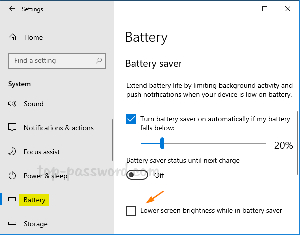
Image 2: Lowering screen brightness to save battery in Windows.
- Use the function keys on your keyboard (usually Fn + F7/F8).
- Or go to Settings > System > Display > Brightness.
- Keep brightness around 40% to 60% indoors.
- Turn on auto-brightness if your laptop supports it.
2. Enable Battery Saver Mode
Windows has a built-in Battery Saver that reduces background activity and notifications when the battery is low.
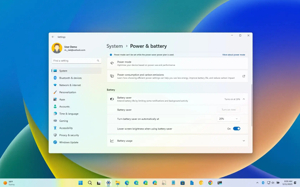
Image 3: Enabling Battery Saver mode in Windows 11.
- Open Settings.
- Go to System > Power & battery.
- Find Battery Saver and turn it on.
- Set it to turn on automatically at 20% or 30% battery.
Battery Saver limits background email syncing, push notifications, and live tile updates to extend battery life.
3. Close Background Apps
Apps running in the background continue to use CPU power even when you are not using them. Closing them can instantly reduce battery drain.
- Press Ctrl + Shift + Esc to open Task Manager.
- Click the Processes tab.
- Sort by Battery usage or CPU.
- Right-click any unnecessary app and select End task.
Common battery hogs include Chrome with many tabs, Steam, Spotify, and cloud sync apps like OneDrive or Google Drive.
4. Disable Unnecessary Startup Programs
Many apps launch automatically when you start your laptop. This slows down boot time and wastes battery from the start.
- Open Task Manager.
- Click the Startup tab.
- Right-click apps you do not need at startup.
- Select Disable.
Disable startup for apps like Skype, Spotify, Cortana, and other non-essential programs.
5. Check Battery Health Report
Windows can generate a detailed battery report that shows your battery capacity, cycle count, and wear level. This tells you if the battery itself is the problem.
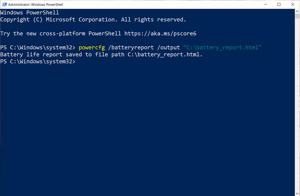
Image 4: Windows battery report showing battery health and capacity.
- Open Command Prompt as administrator.
- Type powercfg /batteryreport and press Enter.
- Open the saved HTML report file in your browser.
- Compare Design Capacity with Full Charge Capacity.
If the full charge capacity is much lower than the design capacity, your battery is worn out and may need replacement.
6. Change Power Mode to Best Power Efficiency
Windows lets you choose how your laptop balances performance and battery life. Switching to power efficiency mode reduces CPU usage and extends battery.
- Open Settings.
- Go to System > Power & battery.
- Find Power mode.
- Select Best power efficiency.
This reduces system performance slightly but can add 1 to 2 hours of battery life.
7. Turn Off Keyboard Backlight
Keyboard backlighting uses a noticeable amount of power. Turning it off when you do not need it saves battery.
- Use the function key (usually Fn + F5 or F6) to dim or turn off backlight.
- Or go to Windows Mobility Center (Win + X > Mobility Center) and adjust keyboard brightness.
8. Unplug Unused USB Devices
USB devices like external hard drives, mice, and flash drives draw power from your laptop even when you are not actively using them.
- Unplug external hard drives when not in use.
- Remove USB flash drives.
- Disconnect chargers for phones or other devices plugged into your laptop.
Each USB device can draw 0.5W to 2.5W of power, which adds up over time.
9. Update Windows and Drivers
Outdated Windows versions and old drivers can cause poor power management. Updates often include battery optimization fixes.
- Open Settings.
- Go to Windows Update.
- Click Check for updates.
- Install all available updates.
- Restart your laptop.
Also check your laptop manufacturer’s website for BIOS or firmware updates, as these can improve battery performance significantly.
10. Replace an Old Battery
If your laptop is 2 to 4 years old and the battery drains in under 2 hours even after all software fixes, the battery itself may be physically worn out. Lithium-ion batteries degrade over time and lose their ability to hold a charge.
Check the battery report (Step 5). If Full Charge Capacity is less than 50% of the Design Capacity, it is time to replace the battery.
- Buy a genuine replacement battery from the laptop manufacturer.
- Avoid cheap third-party batteries — they may not hold charge well.
- If the battery is internal, have a technician replace it if you are not comfortable opening the laptop.
Bonus Tips for Longer Battery Life
- Use dark mode on OLED screens to save power.
- Turn off Bluetooth and Wi-Fi when not needed.
- Avoid extreme temperatures — heat damages lithium-ion batteries.
- Do not keep laptop plugged in 24/7 — let the battery cycle between 20% and 80%.
- Use hibernate instead of sleep for long breaks — sleep still drains battery slowly.
Useful Links
- Asdullah.com
- Windows Support
- Microsoft: Change Power Mode
- Pureinfotech: Enable Battery Saver
- Windows Central: Generate Battery Report
FAQ
Why does my laptop battery drain so fast?
Common causes are background apps, high brightness, too many startup programs, or an aging battery.
How long should a laptop battery last?
A healthy laptop battery should last 4 to 8 hours depending on usage and laptop model.
How do I check my battery health?
Open Command Prompt as admin, type powercfg /batteryreport, and open the generated report.
When should I replace my laptop battery?
If full charge capacity is below 50% of design capacity, or if the battery lasts under 2 hours after all fixes.
Does keeping the laptop plugged in damage the battery?
Keeping it plugged in at 100% all the time can reduce battery lifespan. Let it cycle between 20% and 80%.
Conclusion
Fast battery drain is a common problem, but most of the time it can be fixed without spending money. Start by lowering brightness, enabling Battery Saver, closing background apps, and checking your battery health report.
If the battery is physically old and worn out, replacing it with a genuine one is the best long-term solution. Follow these 10 tips regularly to keep your laptop battery healthy and long-lasting.