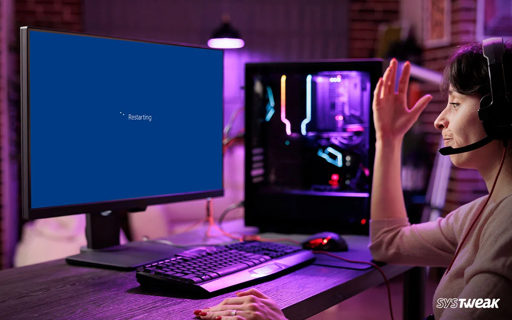
PC Randomly Restarts While Gaming? Power Supply & Thermal Fixes
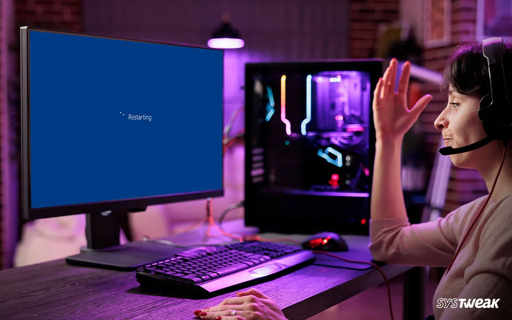
Quick Summary
If your PC restarts only while gaming, the cause is often heat, power, or unstable settings. A weak power supply, hot CPU or GPU, bad RAM, or driver issues can all make the system reboot during games. You can also check more guides here if you need related help.
Start with the easy checks first. Look at the temperature, check the PSU cables, remove overclocks, and update your graphics drivers. If that does not help, test the RAM and the power supply.
Why It Happens
Gaming uses more power than normal work. That means the CPU and GPU run harder, fans spin faster, and the PSU gets more load. If any part is weak, old, dirty, or not stable, the PC may restart. You may also see a black screen first, then the system comes back on.
Some PCs restart because of bad cooling, and some restart because the power supply cannot keep up. In other cases, the problem is the graphics driver, memory settings, or BIOS. The good news is that most of these issues can be tested at home.
Step 1: Check Heat
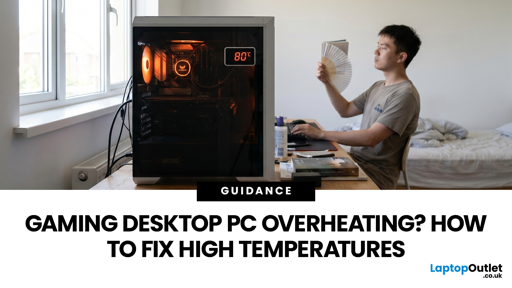
Heat is one of the top reasons for game restarts. Use a tool like HWMonitor or MSI Afterburner to watch CPU and GPU temperatures while gaming. If the numbers climb too high, the PC may shut down to protect itself. See more PC repair tips if you want related fixes.
- Open your temperature tool.
- Play the game until the restart happens or almost happens.
- Check CPU and GPU peak temperatures.
- Clean dust from fans and heatsinks.
- Make sure the case has good airflow.
Step 2: Check the Power Supply
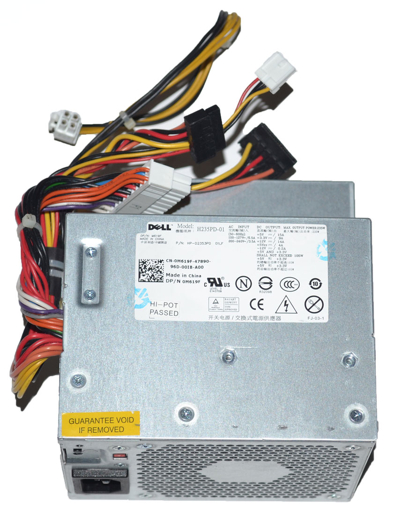
The PSU gives power to every part of the PC. If it is weak or failing, gaming can push it too hard. That is why some computers restart only in heavy games and work fine in light tasks. Microsoft users have reported this kind of issue too.
- Check if the PSU wattage is enough for your hardware.
- Make sure the main 24-pin and CPU power cables are tight.
- Check the GPU power cables too.
- Do not use loose split cables if you can avoid them.
- If possible, test with another known-good PSU.
Step 3: Remove Overclocks
If you changed CPU, GPU, or RAM speed, go back to default settings for now. A setting that looks fine in normal use can fail under game load. This is also a known fix in many restart guides.
- Reset CPU overclock settings in BIOS.
- Turn off GPU overclock tools.
- Disable XMP, EXPO, or DOCP if memory is unstable.
- Test again with stock settings.
Step 4: Update GPU Drivers
Old or broken graphics drivers can cause crashes and reboots. If the restart started after a driver update, reinstall the driver cleanly. Many users fix the problem this way. Microsoft discussion threads mention driver and power issues too.
- Download the latest driver from NVIDIA, AMD, or Intel.
- Remove the old driver if needed.
- Install the new driver.
- Restart the PC and test the game again.
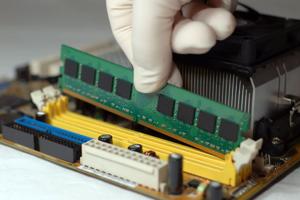
Step 5: Test the RAM
Bad RAM or unstable memory settings can also cause restarts. Try one stick at a time and see if the system becomes stable. Some troubleshooting guides list RAM as a common cause.
- Turn off the PC and open the case.
- Remove one RAM stick.
- Test the game again.
- Try the other stick alone.
- Try different RAM slots if needed.
Step 6: Check Event Viewer
When Windows restarts without a blue screen, Event Viewer can still give clues. Look for Kernel-Power 41 or other error messages near the restart time. More repair articles are available here if you want to compare symptoms.
- Open Event Viewer.
- Go to Windows Logs and then System.
- Look for critical errors.
- Write down the error time and code.
More Help
- Microsoft support
- Dell support
- Intel support
- AMD support
- NVIDIA support
- ASUS support
- MSI support
- Gigabyte support
- Asdullah news and guides
- PC repair category
- Troubleshooting section
- Hardware help
- Gaming fixes
- System repair tips
- More laptop and PC articles
- How-to guides
- PC restarts when playing games
- Kernel-Power restart issue
- Gaming restart fixes
- Restarting during games
- Fix PC overheating while gaming
- How to check your PSU
- Testing a power supply
- Latest tech posts
- Repair tutorials
psychologist