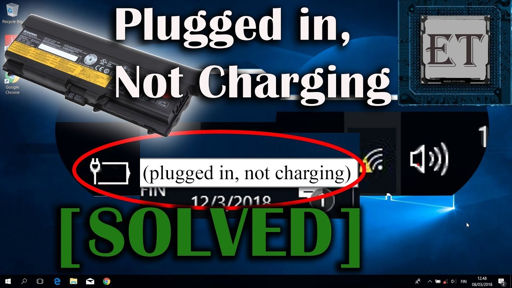
Laptop Plugged In but Not Charging? 10 Working Fixes for Windows 10 and 11
Laptop Plugged In but Not Charging? 10 Working Fixes for Windows 10 and 11
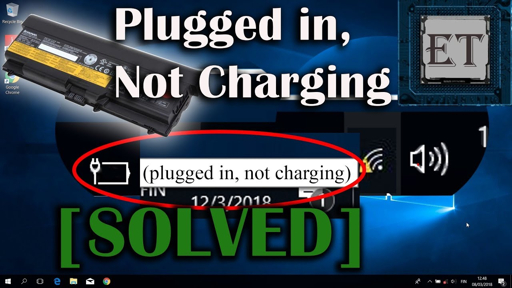
battery, port, driver, heat or charge-limit settings.
If your laptop is plugged in but not charging, first check the wall socket,
charger, cable, charging port and correct wattage. Then restart the laptop,
check Smart Charging or battery-protection settings, reinstall the battery
driver and generate a Windows battery report.
The message “plugged in, not charging” does not always mean
that the battery is damaged. Many laptops intentionally stop charging at
80%, 90% or another limit to protect battery health.
However, the same message can also be caused by a damaged charger, loose
charging port, incorrect USB-C power adapter, outdated battery driver,
overheating, BIOS settings or an old battery.
Save your work and disconnect the charger if the battery is swollen, leaking,
producing smoke, making unusual sounds or becoming extremely hot.
Why Is My Laptop Plugged In but Not Charging?
The laptop charger supplies power to the computer, but the battery may not
receive charging current. The cause can be hardware, software, temperature
protection or a manufacturer battery setting.
| No. | Possible Cause | Common Sign | Recommended Solution | Repair Level |
|---|---|---|---|---|
| 1 | Loose power connection | Charging starts and stops | Reconnect the charger and try another outlet. | Easy |
| 2 | Wrong or weak charger | Plugged in but battery percentage does not increase | Use the original charger or the correct wattage adapter. | Easy |
| 3 | Battery charge limit | Battery stops at 60%, 80% or 90% | Check Smart Charging or the manufacturer battery app. | Easy |
| 4 | Battery driver problem | Windows does not correctly detect charging | Reinstall the Microsoft ACPI battery driver. | Easy |
| 5 | Damaged charging port | Charger works only at an angle | Stop forcing the connector and contact a repair technician. | Repair |
| 6 | Old battery | Laptop shuts down immediately when unplugged | Check battery health and replace the battery if necessary. | Repair |
| 7 | Overheating | Charging stops when the laptop becomes hot | Cool the laptop and clean the ventilation openings. | Check |
Fix 1: Check the Charger and Wall Outlet
Start with the simplest possibility. Make sure the adapter is firmly connected
to the wall socket and the laptop. Try a different wall outlet without using
a loose extension board or damaged power strip.
- Check whether the charger light is switched on.
- Inspect the cable for cuts, exposed wires or bending damage.
- Check whether the adapter becomes unusually hot.
- Try another compatible wall outlet.
- Do not use a charger with a damaged cable.
Fix 2: Use the Correct Charger Wattage
A laptop may turn on with a low-power charger but still refuse to charge the
battery. This commonly happens with USB-C laptops when the adapter provides
less power than the laptop requires.
Check the original charger label, laptop manual or manufacturer support page.
Use a compatible adapter with the correct voltage, connector and wattage.
A charger that physically fits the laptop may still have the wrong voltage,
wattage or USB-C Power Delivery profile.
Fix 3: Check the Charging Port
Dust, lint or a loose charging port can prevent a stable connection. Turn off
the laptop, disconnect the charger and inspect the port with a flashlight.
- Look for dust or foreign objects inside the port.
- Check whether the connector feels loose.
- Do not push metal objects inside the port.
- Do not keep moving the charger at an angle to force charging.
If the laptop charges only when the cable is held in a certain position, the
charging port or internal connection may be damaged and should be checked by
a qualified technician.
Fix 4: Restart and Power Reset the Laptop
A power reset can clear a temporary charging-detection problem. Save your work,
shut down the laptop completely and disconnect the charger.
- Turn off the laptop completely.
- Disconnect the charger.
- Remove external USB devices and memory cards.
- Hold the power button for 15–30 seconds.
- Connect the charger again.
- Turn the laptop on and check the battery icon.
Fix 5: Check Smart Charging and Battery Protection
Windows and many laptop manufacturers provide smart-charging features. These
features may intentionally stop charging before 100% to reduce battery wear.
If the battery stays at 80% and Windows says it is plugged in, the feature may
be working normally rather than indicating a hardware failure.
Where to Check the Setting
- Windows Settings battery page.
- Lenovo Vantage battery settings.
- Dell Power Manager or MyDell.
- HP Support Assistant or HP battery settings.
- ASUS MyASUS battery health charging.
- Acer Care Center battery charge limit.
Microsoft explains that Smart Charging can leave a device plugged in while
temporarily stopping battery charging. [652]
Fix 6: Reinstall the Battery Driver
Windows uses battery and AC adapter drivers to communicate with the charging
system. A driver problem can make the battery status incorrect.
- Press Windows + X.
- Open Device Manager.
- Expand Batteries.
- Right-click Microsoft ACPI-Compliant Control Method Battery.
- Select Uninstall device.
- Do not select the option to permanently delete the driver if shown.
- Restart the laptop.
Windows should detect and reinstall the battery driver after restarting.
If there are two battery entries, repeat the process only for the ACPI battery
device and AC adapter entry shown by your laptop.
Fix 7: Generate a Windows Battery Report
The Windows battery report shows the original design capacity, current full
charge capacity, recent usage and battery estimates. This can help you decide
whether the battery is worn out.
Open Windows Terminal or Command Prompt as administrator and run:
powercfg /batteryreport /output "C:\battery-report.html"
After pressing Enter, open the generated file:
C:\battery-report.html
Compare Design Capacity with Full Charge Capacity.
If the full charge capacity is much lower than the design capacity, the battery
may have significant wear.
Microsoft support guidance also recommends using the battery report to review
battery capacity, recent usage and estimated battery life. [656]
Fix 8: Update Windows, BIOS and Power Drivers
Charging problems can sometimes appear after a Windows update, BIOS change or
power-management driver problem. Install updates only from Windows Update or
the official laptop manufacturer website.
- Open Windows Settings and check Windows Update.
- Install recommended chipset and power-management drivers.
- Check the manufacturer support page for BIOS updates.
- Keep the laptop connected to reliable power during a BIOS update.
- Do not interrupt a BIOS update once it has started.
A failed or interrupted BIOS update can prevent the laptop from starting.
If you are not comfortable updating BIOS, use the manufacturer’s support
service or a qualified technician.
Fix 9: Cool Down an Overheating Laptop
A laptop may temporarily limit or stop charging when its battery or internal
components become too hot. Place the laptop on a hard, flat surface and keep
the ventilation openings clear.
- Do not use the laptop on a bed, blanket or soft sofa.
- Clean dust from external ventilation openings.
- Close applications using unusually high CPU resources.
- Keep the charger and adapter away from direct sunlight.
- Allow the laptop to cool before charging again.
Fix 10: Check Whether the Battery Needs Replacement
The battery may need replacement if the laptop works normally while plugged in
but shuts down immediately after disconnecting the charger.
| Battery Condition | What It Usually Means | Recommended Action | Status |
|---|---|---|---|
| Battery stays at 80% | Smart Charging or charge limit may be active | Check the manufacturer battery application. | Usually Normal |
| Battery stays at 0% | Battery, charger, driver or charging circuit problem | Check charger, driver and battery report. | Investigate |
| Laptop switches off when unplugged | Battery may no longer hold a usable charge | Replace the battery after confirming with a report. | Likely Repair |
| Battery is swollen | Damaged lithium-ion battery | Stop using the laptop and contact authorised support. | Danger |
When Should You Visit a Repair Shop?
Contact a qualified repair technician if the laptop still does not charge
after testing a known-good compatible charger, restarting the device,
reinstalling the battery driver and checking the battery report.
- The charging port is physically loose or broken.
- The laptop smells burnt or becomes dangerously hot.
- The battery is swollen or leaking.
- The charger sparks or has exposed wires.
- The laptop shuts down immediately without the charger.
- The battery is not detected in BIOS or Windows.
- The motherboard charging circuit may be damaged.
What Not to Do
- Do not use a damaged or unbranded charger with unknown voltage.
- Do not puncture, bend, crush or open a swollen battery.
- Do not spray liquid or metal objects into the charging port.
- Do not keep using a laptop that smells burnt.
- Do not force a loose connector into the charging port.
- Do not update BIOS using an unofficial file.
Frequently Asked Questions
Why does my laptop say plugged in but not charging?
The reason may be Smart Charging, a battery charge limit, a weak charger,
damaged cable, battery-driver problem, overheating, a damaged port or an
old battery.
Why is my laptop stuck at 80%?
Many laptops intentionally stop charging at 80% or another percentage to
protect battery health. Check the manufacturer battery application and
Windows Smart Charging settings before replacing the battery.
How do I check laptop battery health?
Open Command Prompt or Windows Terminal as administrator and run
powercfg /batteryreport. Then open the generated HTML file
and compare Design Capacity with Full Charge Capacity.
Can a charger cause the battery not to charge?
Yes. A damaged, incompatible or low-wattage charger can power the laptop
while failing to provide enough power to charge the battery.
Is a swollen laptop battery dangerous?
Yes. Stop using the laptop, disconnect the charger and contact authorised
support. Do not puncture, crush or forcefully remove the swollen battery.
Conclusion
If your laptop is plugged in but not charging, begin with the charger,
cable, outlet and charging port. Then check Smart Charging, reinstall the
battery driver, generate a battery report and update Windows or manufacturer
power drivers.
If the laptop only works while connected to power, the battery may be worn out.
If the battery is swollen, the port is damaged or the charger is overheating,
stop troubleshooting and contact a qualified repair professional.