How to Buy Bitcoin Using Apple Pay and Google Pay Linked to Your Credit Card
Quick Summary
You may be able to buy Bitcoin with Apple Pay or Google Pay when the wallet, exchange, and payment provider support the service in your country.
Your credit card must first be added to Apple Wallet or Google Wallet. The payment is then approved with Face ID, Touch ID, a passcode, or device verification.
Apple Pay and Google Pay do not always sell crypto directly. In most cases, they work through a crypto app, exchange, or payment provider such as BitPay, MoonPay, Transak, Ramp, or another supported service.
How It Works
The process is simple. You add your credit or debit card to Apple Pay or Google Pay, open a supported crypto app, select Bitcoin, choose Apple Pay or Google Pay, and approve the payment.
The crypto may be sent to your exchange account or directly to your personal wallet. The exact process depends on the app and payment provider.
For more crypto and payment guides, visit the Asdullah technology and finance section.
Apps That May Support Apple Pay
BitPay supports Apple Pay for crypto purchases through supported providers and regions.
Trust Wallet may show Apple Pay through available on-ramp providers inside the app.
MoonPay may also appear as a card or Apple Pay provider inside supported wallets and applications.
Some exchange apps may support Apple Pay for deposits or direct purchases. Always check the payment screen because the option may not appear in every country.
Apps That May Support Google Pay
BitPay provides a Google Pay purchase option for supported users.
Crypto.com explains how users can choose Google Pay when the feature is available in their region.
CEX.IO also provides a Google Pay buying option for eligible users and supported locations.
Changelly may show Google Pay through its available payment providers.
Step 1: Add Your Card to Apple Pay
Apple Pay works on supported iPhone, iPad, and Mac devices. Your bank and card issuer must allow the card to be added.
- Open the Wallet app on your iPhone.
- Tap the plus button.
- Select debit or credit card.
- Scan your card or enter the details manually.
- Complete the bank verification.
- Make sure the card shows as active in Apple Wallet.
Apple explains how to set up Apple Pay on supported devices.
Step 2: Add Your Card to Google Pay
Google Pay uses a card saved in Google Wallet. You need an Android device or another supported Google payment setup.
- Open the Google Wallet app.
- Tap Add to Wallet.
- Select a payment card.
- Enter or scan your card details.
- Complete your bank’s verification step.
- Make sure the card is ready for contactless or online payments.
You can read Google’s Google Wallet help center for card setup and payment problems.
Step 3: Choose a Crypto App
Open a trusted exchange, wallet, or crypto payment app that supports Apple Pay or Google Pay.
Good places to check include BitPay Buy Crypto, Trust Wallet Buy Crypto, Crypto.com, CEX.IO, and Changelly.
Do not assume that an app supports mobile payments just because it supports normal card payments. Open the Buy Crypto screen and check the available methods.
Step 4: Select Bitcoin
- Open the Buy or Fund section.
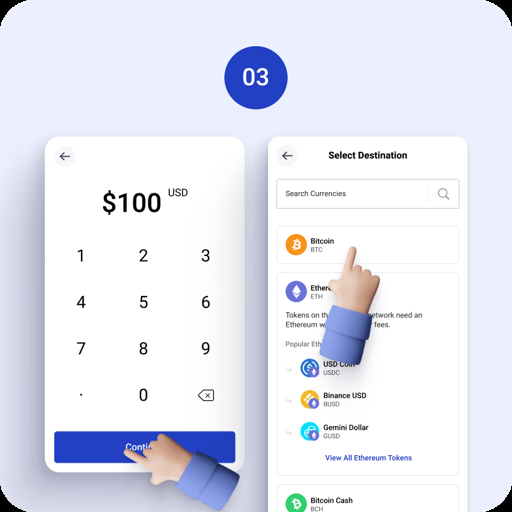
- Search for Bitcoin or BTC.
- Choose the amount of local currency you want to spend.
- Check the amount of Bitcoin you will receive.
- Confirm that your wallet address supports Bitcoin.
Some apps let you enter the amount in dollars or euros. Others let you enter the amount of Bitcoin directly.
Step 5: Choose Apple Pay or Google Pay
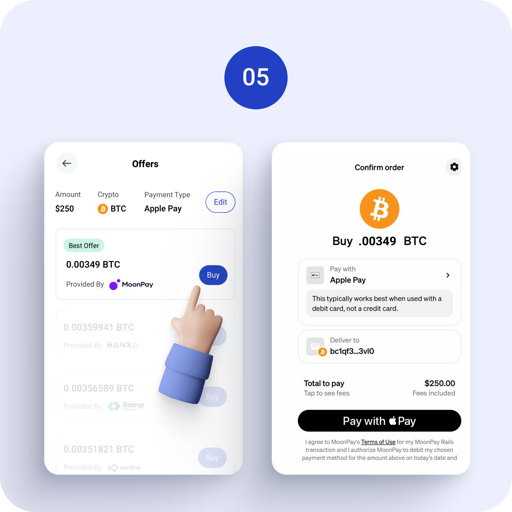
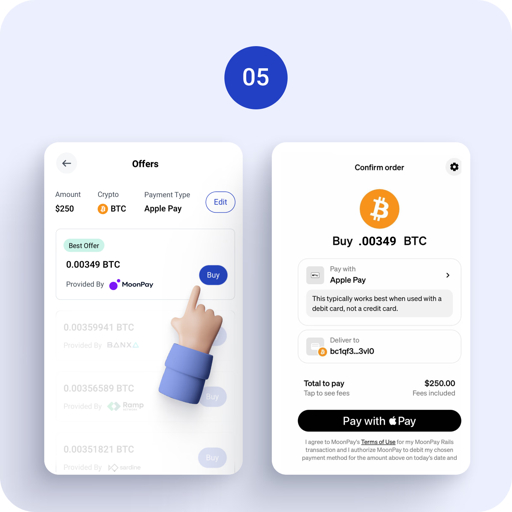
On the payment screen, tap Apple Pay on an iPhone or Google Pay on an Android device. Your linked card should appear inside the payment window.
If the option is missing, the service may not support your country, device, card type, or selected cryptocurrency. Try checking the MoonPay buy page or another supported provider.
Step 6: Confirm the Payment
- Review the Bitcoin price.
- Check the card fee and network fee.
- Confirm the wallet address.
- Approve Apple Pay with Face ID, Touch ID, or passcode.
- Approve Google Pay with fingerprint, face unlock, or screen lock.
- Wait for the payment and blockchain confirmation.
Do not close the app until the payment result appears. Save the transaction receipt for your records.
Fees to Watch
- Crypto app service fee.
- Apple Pay or Google Pay card processing fee.
- Exchange spread.
- Blockchain network fee.
- Currency conversion fee.
- Possible credit card cash-advance fee.
Always compare the final amount charged with the amount of Bitcoin you receive. A fast payment is not always the cheapest payment.
Credit Card Warning
Some banks treat crypto purchases made with a credit card as cash advances. This can create extra fees or interest.
Ask your bank about its crypto payment policy before buying. A debit card is often easier to manage because it uses money already in your bank account.
Why Apple Pay or Google Pay May Not Work
- Your country is not supported.
- Your bank blocks crypto payments.
- Your card does not support Apple Pay or Google Pay.
- The selected crypto provider does not support mobile payments.
- Your card billing address does not match your account.
- The payment requires identity verification.
- Your transaction is above the provider limit.
If the payment fails, check the official Crypto.com support page, CEX.IO support page, or the support page of your selected provider.
Safety Tips
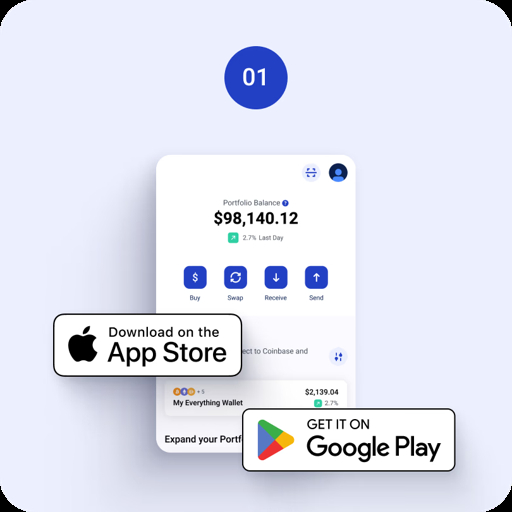
- Use only official apps from the Apple App Store or Google Play.
- Check the website address before entering payment information.
- Turn on two-factor authentication.
- Never share your wallet recovery phrase.
- Start with a small test purchase.
- Check the Bitcoin wallet address carefully.
- Do not send money to a person claiming to be a crypto support agent.
For more online security information, read the CISA security guidance.
Apple Pay vs Google Pay
| Feature | Apple Pay | Google Pay |
|---|---|---|
| Main devices | iPhone, iPad, Mac, Apple Watch | Android phones and supported devices |
| Payment approval | Face ID, Touch ID, or passcode | Fingerprint, face unlock, or screen lock |
| Crypto support | Depends on app and region | Depends on app and region |
FAQ
Can I buy Bitcoin with Apple Pay?
Yes, some crypto apps and payment providers support Apple Pay in selected countries.
Can I buy Bitcoin with Google Pay?
Yes, some exchanges, wallets, and payment providers support Google Pay for Bitcoin purchases.
Can I use a credit card linked to Apple Pay?
Sometimes. Your card issuer, Apple Pay, and the crypto provider must all allow the transaction.
Can I use a credit card linked to Google Pay?
Sometimes. Google Pay does not guarantee that the crypto provider or bank will approve the payment.
Which app is easiest for Apple Pay?
BitPay and supported wallet apps may offer a simple Apple Pay purchase flow. Availability depends on location.
Which app supports Google Pay?
BitPay, Crypto.com, CEX.IO, Changelly, and some wallet providers may support Google Pay in selected regions.
Are Apple Pay and Google Pay crypto purchases instant?
Payment approval may be fast, but crypto delivery can take longer because of verification, bank approval, and blockchain confirmation.
Why is Apple Pay not showing in my crypto app?
The feature may not be supported in your country, card type, device, or selected crypto provider.
Risk Warning
Bitcoin and other cryptocurrencies can lose value quickly. Credit card purchases may include interest, cash-advance charges, and extra fees.
Do not spend money needed for rent, food, bills, or debt payments. This article is for general information only and is not financial advice.
Conclusion
Apple Pay and Google Pay can make Bitcoin purchases faster and easier when they are supported by your wallet, exchange, bank, and country.
BitPay, Trust Wallet, Crypto.com, CEX.IO, Changelly, MoonPay, and other providers may offer Apple Pay or Google Pay crypto purchases through supported payment partners.
Before buying, compare the final fees, card rules, verification requirements, purchase limits, and wallet delivery time. For more simple crypto and technology guides, visit the Asdullah news section.