PC Turns On But No Display: Step-by-Step Troubleshooting Guide
Quick Summary
If your PC turns on but nothing appears on the screen, the most common causes are a loose video cable, the wrong monitor input, faulty RAM, a graphics card problem, or BIOS/CMOS settings. Start with external checks first, then move to internal hardware troubleshooting if the issue remains.
In many cases, you can fix the problem by reconnecting the display cable, testing the monitor, reseating the RAM, or resetting the CMOS.
Step 1: Check the Monitor
The monitor itself may be the issue. Many no-display problems are actually caused by the display not being powered on or set to the wrong input source.
-
- >Make sure the monitor is turned on.
>Check the power cable and the power light.
>Use the monitor buttons to select the correct input, such as HDMI, DisplayPort, DVI, or VGA.
>Test the monitor with another device if possible.
Step 2: Check the Video Cable
A damaged or loose cable is one of the most common reasons a PC powers on with no display. Always inspect the cable before opening the case.
-
- >Unplug the cable from both ends.
>Reconnect it firmly to the monitor and PC.
>Check for bent pins or visible damage.
>Try a different HDMI, DisplayPort, DVI, or VGA cable.
>Test another port if available.
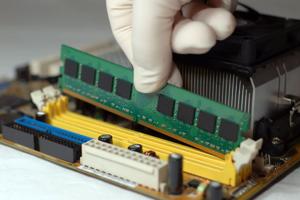
Step 5: Reseat the RAM
Badly seated or faulty RAM is a very common reason for a PC to power on but not display anything. Reseating memory is one of the most effective troubleshooting steps.
-
- >Turn off the PC and unplug it.
>Open the case.
>Remove the RAM sticks carefully.
>Reinsert them firmly until the clips lock.
>If needed, test one stick at a time.
>Try different RAM slots.
Step 6: Check the Graphics Card
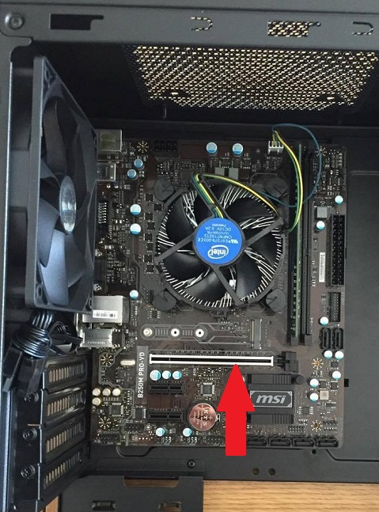
If your PC has a dedicated GPU, it may be loose, underpowered, or faulty. A graphics card that is not properly seated can prevent the system from showing any display.
-
- >Turn off the PC and unplug it.
>Open the case and locate the graphics card.
>Make sure it is fully seated in the PCIe slot.
>Check that all power connectors are firmly attached.
>Reinstall the card if needed.