How to Fix Loud Laptop Fan Noise (Hardware vs Software)
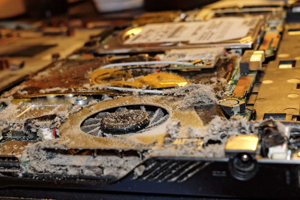
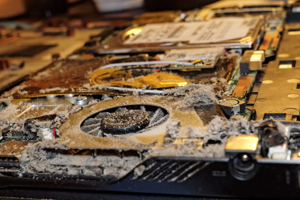
Image 1: Laptop fan clogged with dust, causing loud noise and overheating.
Quick Summary
Loud laptop fan noise is usually caused by dust blocking the vents, high CPU usage from background apps, outdated drivers, or a failing fan bearing. The fix depends on whether the problem is hardware or software.
Start by checking Task Manager for high CPU usage. If an app is consuming too much power, it is a software issue. If the fan is loud even when the laptop is idle, the problem is likely dust or a failing fan — which requires physical cleaning or replacement.
Why Laptop Fans Get Loud
Laptop fans spin faster when the internal temperature rises. If the fan is always loud, something is causing the laptop to run hot or the fan itself is damaged.
- Dust buildup: Dust blocks air vents and forces the fan to spin faster to compensate.
- High CPU usage: Background apps or malware can push the CPU to 100%, generating excess heat.
- Failing fan bearing: Worn bearings cause grinding, clicking, or rattling sounds.
- Blocked airflow: Using the laptop on a bed, pillow, or lap blocks the bottom vents.
- Outdated BIOS or drivers: Old firmware can cause poor fan control and power management.
- Dried thermal paste: The paste between CPU and heatsink dries out after 2 to 3 years, causing overheating.
Hardware vs Software: How to Tell the Difference
Before fixing, determine whether the problem is hardware-related or software-related. The diagnosis is simple.
Software problem: The fan is loud only when certain apps are running, or the laptop is hot due to high CPU usage. Fixing the software fixes the fan noise.
Hardware problem: The fan is loud even when the laptop is idle, makes grinding or clicking sounds, or the laptop overheats despite low CPU usage. This requires physical cleaning or fan replacement.
Software Fix 1: Check CPU Usage in Task Manager
The first step is to find out if any app is consuming too much CPU power, which causes the laptop to heat up and the fan to spin loudly.
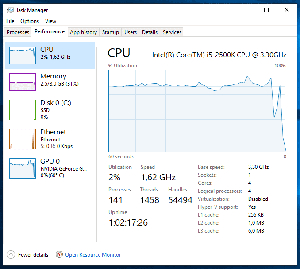
Image 2: Task Manager Performance tab showing CPU temperature and usage.
- Press Ctrl + Shift + Esc to open Task Manager.
- Click the Processes tab.
- Sort by CPU column to find the highest consumer.
- If any app is using more than 20-30% CPU when idle, that is the problem.
- Right-click the app and select End task.
Common CPU hogs include Chrome with many tabs, Windows Update running in the background, antivirus scans, and malware.
Software Fix 2: Close Background Apps and Startup Programs
Apps that launch on startup keep running in the background and generate heat even when you are not using them.
- Open Task Manager.
- Click the Startup tab.
- Right-click non-essential apps and select Disable.
- Restart the laptop.
Disable startup for apps like Steam, Spotify, Skype, OneDrive sync, and other programs you do not need running constantly.
Software Fix 3: Change Power Mode
Windows power settings directly affect how hard the CPU runs. Switching to a power-efficient mode reduces heat and fan noise.
- Open Settings (Windows + I).
- Go to System > Power & battery.
- Find Power mode.
- Select Best power efficiency or Balanced.
Avoid “Best performance” mode for daily use — it pushes the CPU to maximum speed and generates more heat.
Software Fix 4: Scan for Malware
Malware and crypto-mining infections can run hidden processes that consume CPU resources and cause the fan to spin constantly.
- Open Windows Security.
- Go to Virus & threat protection.
- Click Quick scan or Full scan.
- Remove any threats found.
- Restart the laptop.
Software Fix 5: Update BIOS and Drivers
An outdated BIOS can cause poor fan control. Manufacturers regularly release BIOS updates that improve thermal management and fan behavior.
- Visit your laptop manufacturer’s support website.
- Search for your laptop model.
- Download the latest BIOS update and chipset driver.
- Follow the manufacturer’s instructions to install.
- Restart the laptop.
Warning: Never interrupt a BIOS update. If the laptop loses power during the update, the motherboard can be permanently damaged. Always have the charger plugged in during a BIOS update.
Hardware Fix 1: Clean the Fan and Vents
Dust is the number one cause of loud laptop fans. Over time, dust builds up on the fan blades and blocks the air vents, forcing the fan to work harder and spin louder.
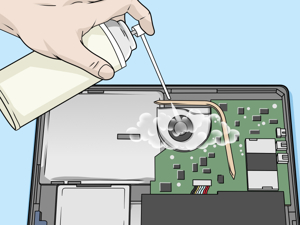
Image 3: Cleaning laptop fan and vents with compressed air.
Quick Clean (Without Opening)
- Shut down the laptop and unplug the charger.
- Get a can of compressed air.
- Hold the fan still with a toothpick or small piece of tape so it does not spin.
- Spray short bursts of air into the side and bottom vents.
- Repeat for all vent openings.
- Wipe away any dust that comes out.
Hold fan still
Spray compressed air into vents
Short bursts only
Wipe away dust
Important: Never let the fan spin freely with compressed air. Overspinning can damage the fan bearings and make the noise worse. Always hold the fan blades still with a toothpick.
Deep Clean (Opening the Laptop)
If the quick clean is not enough, you need to open the laptop and clean the fan directly.
- Shut down and unplug the laptop.
- Remove the battery if removable.
- Remove the bottom cover screws with a Phillips screwdriver.
- Pry off the bottom cover with a plastic tool.
- Locate the fan(s) on the motherboard.
- Use compressed air to blow dust off the fan blades and heatsink fins.
- Use a soft brush to remove stubborn dust.
- Wipe the fan blades gently with a microfiber cloth.
- Reassemble the laptop.
Hardware Fix 2: Use the Laptop on a Hard Surface
Using a laptop on a bed, pillow, couch, or lap blocks the bottom air vents. This traps heat inside and forces the fan to spin at maximum speed.
- Always use the laptop on a hard flat surface like a desk or table.
- If you must use it on your lap, use a laptop tray or book underneath.
- Never place the laptop on fabric, blankets, or cushions.
Hardware Fix 3: Use a Laptop Cooling Pad
A cooling pad is an external accessory with built-in fans that sits under your laptop. It provides extra airflow and helps lower the internal temperature.
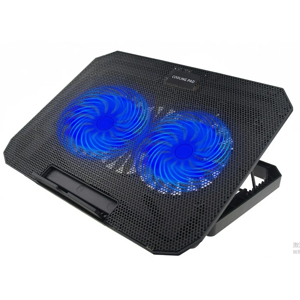
Image 4: Laptop cooling pad with built-in fans for extra airflow.
- Cooling pads cost $15 to $40 and are available online or in electronics stores.
- They are especially useful for gaming laptops that generate a lot of heat.
- Look for pads with adjustable fan speed and ergonomic height.
Hardware Fix 4: Replace a Failing Fan
If the fan makes grinding, clicking, or rattling sounds, the fan bearing is worn out. Cleaning will not fix this — the fan needs to be replaced.
- Find your laptop model number on the bottom sticker.
- Search for a replacement fan online using the model number.
- Buy from a trusted seller or the laptop manufacturer.
- Open the laptop and disconnect the old fan’s power cable.
- Unscrew the fan from the motherboard.
- Remove any old thermal paste from the heatsink.
- Install the new fan and screw it in.
- Apply fresh thermal paste to the CPU.
- Reconnect the fan cable and reassemble the laptop.
Replacement fans typically cost $10 to $30 depending on the laptop model.
Hardware Fix 5: Repaste the CPU
Thermal paste is a compound between the CPU and the heatsink that transfers heat. After 2 to 3 years, it dries out and loses effectiveness, causing the laptop to overheat and the fan to run constantly.
- Open the laptop and remove the heatsink screws.
- Clean off the old dried paste with isopropyl alcohol (90%+).
- Apply a small pea-sized amount of new thermal paste to the CPU.
- Reattach the heatsink and tighten screws in a cross pattern.
- Reassemble the laptop and test temperatures.
Good quality thermal paste costs $5 to $10 and can lower CPU temperature by 5 to 15 degrees.
How to Check Laptop Temperature
Monitoring your laptop temperature helps you understand if the fan noise is justified or abnormal.
- Normal idle temperature: 40-50 degrees C
- Normal under load: 70-85 degrees C
- Danger zone: Above 90 degrees C — thermal throttling starts
- Critical: Above 95 degrees C — laptop will shut down to protect itself
You can check the temperature using free tools like HWMonitor, Core Temp, or HWiNFO. Windows 11 Task Manager also shows GPU temperature under the Performance tab.
Quick Diagnosis Checklist
- Is CPU usage high in Task Manager? — Software issue
- Is the fan loud even when idle? — Hardware issue (dust or fan)
- Does the fan make grinding or clicking sounds? — Replace fan
- Is the laptop hot to touch? — Clean dust or repaste CPU
- Are the bottom vents blocked? — Use on a hard surface
- Is BIOS outdated? — Update from manufacturer website
When to Seek Professional Help
- The laptop shuts down on its own due to overheating.
- The fan makes grinding sounds and the laptop is still under warranty.
- You are not comfortable opening the laptop to clean or replace the fan.
- The laptop overheats even after cleaning and repasting.
- The motherboard or heatsink has visible damage.
Professional fan cleaning costs $30 to $50. Fan replacement costs $50 to $100 including labor. Thermal repasting costs $40 to $80.
Useful Links
- Asdullah.com
- Lifewire: How to Clean a Laptop Fan
- How-To Geek: Clean Dust Out of Your Laptop
- Lifewire: Check CPU Usage in Windows 11
- gHacks: Check GPU Temperature in Task Manager
FAQ
Why is my laptop fan so loud all of a sudden?
Sudden loud fan noise is usually caused by a background app consuming high CPU, dust blocking the vents, or a recent Windows update causing driver issues.
Is it safe to use compressed air on a laptop fan?
Yes, but always hold the fan blades still so they do not overspin. Overspinning can damage the fan bearings.
How often should I clean my laptop fan?
Clean the fan every 3 to 6 months, or more often if you use the laptop in a dusty environment.
Can I replace a laptop fan myself?
Yes, if you are comfortable opening the laptop. Find the exact replacement fan using your laptop model number. If not, take it to a repair shop.
Why does my laptop overheat even after cleaning?
The thermal paste between the CPU and heatsink may be dried out. It needs to be cleaned and replaced with fresh thermal paste.
Do cooling pads actually work?
Yes. Cooling pads provide extra airflow and can lower laptop temperature by 3 to 10 degrees, reducing fan noise significantly.
Conclusion
Loud laptop fan noise is almost always a sign of overheating. Start by checking Task Manager for high CPU usage — if an app is the culprit, it is a quick software fix. Close background apps, change power mode, scan for malware, and update your BIOS.
If the fan is loud even when idle, the problem is hardware-related. Clean the fan and vents with compressed air, use the laptop on a hard surface, or invest in a cooling pad. If the fan makes grinding sounds, it needs replacement. And if the laptop is more than 2 years old, repasting the CPU can dramatically reduce temperatures and silence the fan.
