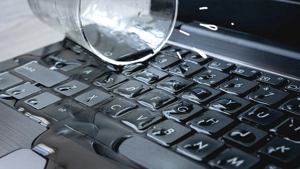
What to Do Immediately When Liquid Spills on Your Laptop
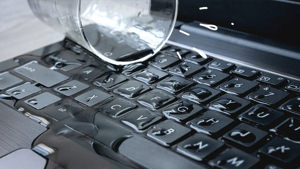
Image 1: Liquid spilled on a laptop keyboard — act immediately.
Quick Summary
If liquid spills on your laptop, every second counts. The most important steps are: turn it off immediately, unplug the charger, remove the battery, flip the laptop upside down, and let it dry completely.
Do not use a hair dryer, do not shake the laptop, and do not turn it back on until it is fully dry — usually 48 to 72 hours. Water is less damaging than sugary drinks like coffee, soda, or juice, which leave sticky residue that causes corrosion.
Why Speed Matters
Liquid and electronics do not mix. When liquid reaches the motherboard or internal components, it can cause immediate short circuits that permanently damage the laptop. The faster you cut power and remove the liquid, the higher the chance of saving your device.
Golden rule: If the laptop is on when the spill happens, turn it off within 10 seconds. Do not save files, do not shut down properly — just hold the power button until it forces off.
Step 1: Turn Off the Laptop Immediately
This is the single most important step. Leaving the laptop on while liquid is inside guarantees short circuits.
- Press and hold the power button for 5 to 10 seconds until the laptop forces off.
- Do not click “Shut Down” — that takes too long.
- Do not save files or close apps — every second matters.
If the laptop is already off or in sleep mode, do not turn it on to “check if it still works.” Turning it on with liquid inside will cause a short circuit.
Step 2: Unplug the Charger and All Devices
Remove all power sources immediately to stop electricity flowing through wet components.
- Unplug the charger from the laptop.
- Unplug the charger from the wall outlet.
- Disconnect all USB devices, external monitors, and headphones.
- Remove any SD cards or dongles.
Step 3: Remove the Battery
The battery is a power source that can continue feeding electricity to the motherboard even after the laptop is off. Removing it is critical.
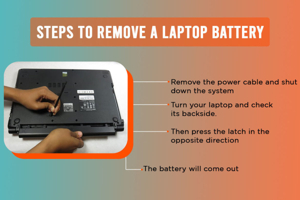
Image 2: Disconnecting the internal battery after a liquid spill to prevent short circuits.
- If the battery is removable: Slide the latch and remove it immediately.
- If the battery is internal: You will need to open the back cover and disconnect the battery ribbon cable from the motherboard.
- If you cannot open the laptop: Skip this step, but understand the risk is higher.
Warning: Do not remove the battery while the laptop is still powered on. Turn it off first, then remove the battery.
Step 4: Flip the Laptop Upside Down
Immediately turn the laptop upside down in an open V shape (like a tent) so the liquid drains out instead of seeping deeper into the motherboard.
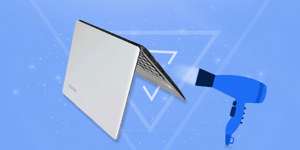
Image 3: Laptop placed upside down in a tent shape to let liquid drain out.
- Open the laptop lid to about 135 degrees.
- Place it upside down on a flat towel-covered surface.
- The keyboard should face downward so liquid drains out.
- Keep it in this position for at least 15 to 30 minutes to let the liquid drain.
This position prevents liquid from flowing from the keyboard through to the screen and motherboard.
Step 5: Wipe Off Visible Liquid
Use a dry microfiber cloth or paper towel to wipe away any visible liquid on the surface.
- Gently wipe the keyboard surface.
- Wipe the screen if liquid reached it.
- Wipe the touchpad and palm rest.
- Wipe the bottom case if liquid ran through.
Do not press hard on the keys — this can push liquid deeper into the keyboard mechanism.
Step 6: Let It Dry for 48 to 72 Hours
Patience is critical. Do not rush to turn the laptop back on. Even a small amount of moisture inside can cause a short circuit.
- Keep the laptop open and upside down or in a tent shape.
- Place it in a dry, warm room with good air circulation.
- Leave it for at least 48 hours, ideally 72 hours.
- Do not use a hair dryer or heat gun — forced air can push liquid deeper.
- Do not place it in direct sunlight or near a heater.
A common myth is to put the laptop in a bag of rice. This is not recommended — rice dust can get inside the laptop and cause more problems. Instead, use silica gel packets if you have them, or just let it air dry in a well-ventilated room.
Step 7: What to Do If You Spilled Something Other Than Water
Water is the least damaging liquid. Sugary or acidic drinks are much worse because they leave residue that causes corrosion on the motherboard.
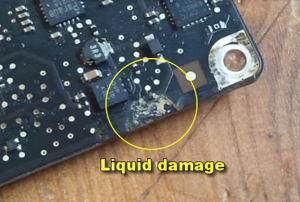
Image 4: Laptop motherboard showing liquid damage and corrosion from sugary drinks.
- Water: Least damaging. Air drying is usually enough.
- Coffee or tea: Contains sugar and acidity. Needs internal cleaning.
- Soda or juice: Very sticky and corrosive. Professional cleaning needed.
- Alcohol: Evaporates quickly but can damage screen coatings.
- Milk: Very damaging — dries hard and causes rapid corrosion.
If you spilled anything other than water, the laptop will need to be opened and the motherboard cleaned with isopropyl alcohol (90% or higher) to remove sticky residue. This is best done by a professional.
Step 8: After Drying — Test Carefully
After 48 to 72 hours of drying, you can test the laptop. But do this carefully.
- Reconnect the battery (or insert it if removable).
- Plug in the charger.
- Watch for any unusual smells, sounds, or smoke.
- If you notice anything unusual, unplug immediately.
- If nothing seems wrong, press the power button.
- Test the keyboard, touchpad, speakers, and screen.
Plug in charger
Watch for smells or smoke
Power on
Test keyboard, touchpad, screen, speakers
If the laptop does not turn on, or if some keys do not work, the liquid may have caused permanent damage. Take it to a professional repair shop for diagnosis.
Things You Must Never Do
- Do not use a hair dryer — hot air can melt components and push liquid deeper.
- Do not shake the laptop — this spreads liquid to dry areas.
- Do not put it in rice — rice dust gets inside and causes more damage.
- Do not turn it on too soon — even a small amount of moisture can short-circuit.
- Do not use a heat gun or oven — excessive heat will melt plastic and damage chips.
- Do not press the keyboard hard — this pushes liquid deeper inside.
- Do not charge it while wet — electricity and liquid cause instant short circuits.
How to Prevent Liquid Spills
- Keep drinks away from the laptop — use a side table or cup with a lid.
- Use a keyboard cover skin — it adds a waterproof barrier over the keys.
- Do not eat or drink over the laptop — accidents happen in one second.
- Use a spill-proof water bottle with a locking cap if you must have drinks nearby.
- Keep the laptop on a raised stand so it is above the level of cups on the desk.
When to Seek Professional Help
- You spilled coffee, soda, juice, or milk — these require internal cleaning.
- The laptop does not turn on after 72 hours of drying.
- Some keys do not work or the screen shows lines.
- You smell burning or notice smoke when turning it on.
- You are not comfortable opening the laptop yourself.
A professional repair shop can disassemble the laptop, clean the motherboard with isopropyl alcohol, and replace any damaged components. The cost depends on the damage but typically ranges from $50 to $200.
Quick Emergency Checklist
- Turn off the laptop (hold power button 10 seconds)
- Unplug the charger and all USB devices
- Remove the battery
- Flip the laptop upside down in a tent shape
- Wipe visible liquid with a dry cloth
- Let it dry for 48 to 72 hours
- Test after drying — check for smells or smoke
- If not water, take it to a professional for internal cleaning
Useful Links
- Asdullah.com
- Asurion: Spilled Water on Laptop
- Digital Trends: What to Do After a Spill
- LaptopMD: Water Spill Damage Repair
- BeetsTech: Prevent Liquid Damage
FAQ
Can a laptop survive a water spill?
Yes, if you turn it off within seconds, remove the battery, and let it dry for 48 to 72 hours before turning it back on.
Should I put my laptop in rice?
No. Rice does not absorb moisture fast enough and rice dust can get inside the laptop. Air drying in a ventilated room is better.
How long should I let my laptop dry?
At least 48 hours, ideally 72 hours. Do not rush to turn it on.
Is coffee more damaging than water?
Yes. Coffee, soda, and juice contain sugar and acids that leave sticky residue and cause corrosion. These require professional internal cleaning.
Can I use a hair dryer to dry my laptop?
No. A hair dryer can melt components and push liquid deeper inside. Let it air dry naturally.
What if my laptop does not turn on after drying?
The liquid may have caused a short circuit on the motherboard. Take it to a professional repair shop for diagnosis and cleaning.
Conclusion
When liquid spills on your laptop, the first 60 seconds are the most critical. Turn it off immediately, unplug everything, remove the battery, flip it upside down, and let it dry for at least 48 hours.
If you spilled water and acted fast, the laptop has a good chance of survival. If you spilled a sugary drink, take it to a professional for internal cleaning. And in the future, keep all drinks far away from your laptop — prevention is always better than repair.
