How to Fix “Application Was Unable to Start Correctly (0xc000007b)”
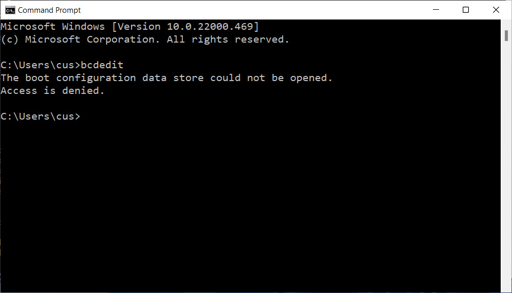
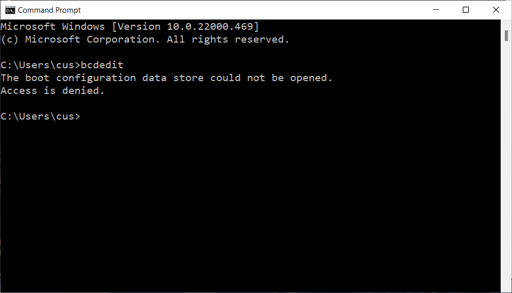
Image 1: Open Command Prompt as Administrator before trying repair commands.
Quick Summary
The error “The application was unable to start correctly (0xc000007b)” usually appears when a program is missing important files or when Windows has a mismatch between 32-bit and 64-bit components. It can happen with games, office apps, design tools, and other programs.
The good news is that this problem is often fixable. In many cases, updating Windows, repairing system files, reinstalling Visual C++ runtimes, or repairing DirectX and .NET can solve it.
Why Does This Error Happen?
This error usually means one of the files the app needs is broken, missing, or the wrong version. It can also happen when a 64-bit file is used with a 32-bit app, or when Windows system files are corrupted.
- Missing DLL files: The app cannot find a file it needs to start.
- Wrong architecture: A 32-bit and 64-bit mismatch is causing the crash.
- Broken system files: Windows files may be damaged.
- Outdated DirectX or .NET: Some apps need these components to run.
- Bad Visual C++ runtime: Games and software often depend on Microsoft Visual C++ files.
Method 1: Restart Your PC
Sometimes the error is temporary. A simple restart may clear the problem and let the app open normally.
- Close all open apps.
- Restart your computer.
- Try opening the same app again.
Method 2: Run the App as Administrator
Some programs need extra permission to start correctly. Running the app as administrator can fix permission-based startup errors.
- Right-click the app shortcut.
- Choose Run as administrator.
- If it opens, the issue may be related to permissions.
Method 3: Install or Repair Microsoft Visual C++
Many apps and games need Microsoft Visual C++ Redistributables. If those files are missing or damaged, the 0xc000007b error can appear.
Download and install the latest Visual C++ packages from Microsoft, then restart your PC and try again. If you already have them, reinstalling can still help repair broken files.
Method 4: Repair System Files with DISM and SFC
Broken Windows files can also trigger this error. The best way to check them is to run DISM first, then SFC. That helps repair the Windows image and then scan the protected system files.
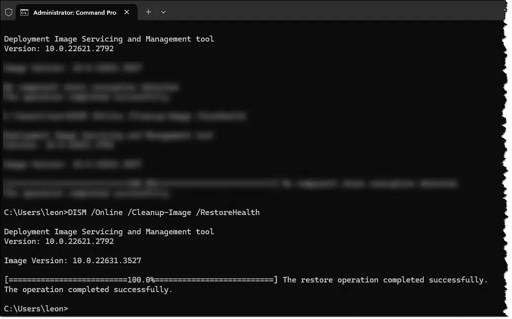
Image 2: Command Prompt being used for DISM repair.
sfc /scannow
Wait for both commands to finish. After that, restart your PC and try opening the app again. If SFC repairs files successfully, the issue may be gone.
Method 5: Reinstall the Problem App
If only one app shows the error, the app itself may be corrupted. Reinstalling it can replace missing files and restore the correct version.
- Uninstall the app from Control Panel or Settings.
- Restart your PC.
- Download the latest version from the official source.
- Install it again and test it.
Method 6: Repair .NET Framework
Some apps depend on .NET Framework. If it is damaged or not enabled, the program may fail to start. Repairing or enabling .NET can help fix the error.
- Open Windows Features.
- Make sure the needed .NET Framework versions are enabled.
- Click OK and let Windows install the files if needed.
Method 7: Install DirectX
Games and some graphics apps need DirectX. If the required DirectX files are missing, the error can appear when you launch the program.
- Download the official DirectX installer.
- Install it completely.
- Restart your PC.
- Open the app again.
Method 8: Check for Windows Updates
Windows updates often fix missing components and compatibility problems. Keeping Windows updated can solve the error if it was caused by system bugs.
- Open Settings.
- Go to Windows Update.
- Click Check for updates.
- Install all updates and restart your PC.
Method 9: Run the App in Compatibility Mode
If the app is old, it may not work well with your current version of Windows. Compatibility Mode can help older programs run more smoothly.
Choose an older Windows version from the list, then click Apply and OK.
Method 10: Check Disk for Errors
Sometimes the hard drive itself has problems. Running CHKDSK can find and repair disk errors that may be causing the startup issue.
Replace C: if your Windows drive uses a different letter. After the scan, restart and try the app again.
Extra Tips
- Make sure your app matches your system type, 32-bit or 64-bit.
- Do not use random DLL download sites.
- Keep Windows and drivers updated.
- Try one fix at a time so you know what worked.
- If nothing helps, back up your data and consider a clean reinstall of the app.
FAQ
Is 0xc000007b a virus?
No. It is usually a file, runtime, or compatibility problem.
Can this happen with games?
Yes. It is common with games and launchers.
Should I reinstall Visual C++?
Yes, that is one of the best fixes.
Do I need to reinstall Windows?
Usually no. Most users can fix it without reinstalling Windows.
Conclusion
The 0xc000007b error can be frustrating, but it is usually fixable. Start with simple steps like restarting the PC, running the app as administrator, and reinstalling the needed runtime files.
If that does not work, repair Windows with DISM and SFC, then check DirectX, .NET Framework, Windows Updates, and the app itself. In most cases, one of these steps will fix the problem and let the program start normally.
