
How to Fix “SYSTEM_SERVICE_EXCEPTION” BSOD Error on Windows

Executive Summary & Diagnostic Flowchart
The SYSTEM_SERVICE_EXCEPTION stop code (0x0000003B) indicates that executable code running in kernel mode encountered an exception and the operating system could not handle it. It is usually triggered by corrupted graphics drivers, faulty RAM, system file corruption, or third-party antivirus software interfering with Windows kernel execution.
│
▼
┌──────────────────────────────────────────────────────────────────────────┐
│ STEP 1: SAFE MODE / DRIVER ROLLBACK │
│ ├─► Update/Rollback GPU Drivers (NVIDIA / AMD / Intel) │
│ └─► Uninstall Recent Third-Party Antivirus (Avast/McAfee) │
└─────────────────────────┬────────────────────────────────────────────────┘
│
▼
┌──────────────────────────────────────────────────────────────────────────┐
│ STEP 2: SYSTEM FILE INTEGRITY & MEMORY CHECK │
│ ├─► Run `sfc /scannow` & `DISM /Online /Cleanup-Image /RestoreHealth` │
│ └─► Execute Windows Memory Diagnostic (`mdsched.exe`) │
└─────────────────────────┬────────────────────────────────────────────────┘
│
▼
[ SYSTEM REBOOT & VERIFIED ] ──► Verified via Asdullah OS Crash Portal
Understanding the SYSTEM_SERVICE_EXCEPTION Error
When this crash occurs, Windows displays a Blue Screen with the stop code SYSTEM_SERVICE_EXCEPTION. Frequently, a specific driver file causing the crash will be listed underneath (e.g., ks.sys, ntfs.sys, atikmdag.sys, or nvlddmkm.sys).
If you call a support person, give them this info:
Stop code: SYSTEM_SERVICE_EXCEPTION
What failed: nvlddmkm.sys
Method 1: Update or Roll Back Display Drivers via Device Manager
Over 70% of SYSTEM_SERVICE_EXCEPTION crashes are caused by corrupted or outdated display drivers (NVIDIA, AMD, or Intel Graphics).

Step Screenshot 1.1: Managing System Hardware & Graphics Drivers in Device Manager.
Step-by-Step Instructions:
- Press Windows Key + X and select Device Manager.
- Expand the Display adapters section.
- Right-click your active graphics card (e.g., NVIDIA GeForce / AMD Radeon) and select Properties.
- Go to the Driver tab.
- If the error started after a recent driver update, click Roll Back Driver.
- If your driver is old, click Update Driver > Search automatically for drivers.
- Reboot your PC to apply driver changes. See Asdullah Driver Optimization Guide.
Method 2: Run SFC (System File Checker) and DISM Repair Scans
Corrupted core system files trigger kernel exceptions. Running SFC and DISM repairs damaged Windows binaries.
Beginning verification phase of system scan.
Verification 100% complete.
Windows Resource Protection found corrupt files and successfully repaired them.
The restore operation completed successfully. The operation completed successfully.
Step-by-Step Instructions:
- Press Windows Key + S, type cmd, right-click Command Prompt, and click Run as administrator.
- Type the following command and hit Enter:
sfc /scannow
- Wait for the scan to reach 100%. Next, run the DISM servicing command:
dism /online /cleanup-image /restorehealth
- Restart your computer once both procedures report success.
Method 3: Test Physical RAM using Windows Memory Diagnostic
Hardware memory faults or failing RAM modules frequently throw kernel service exceptions during high-memory workloads.
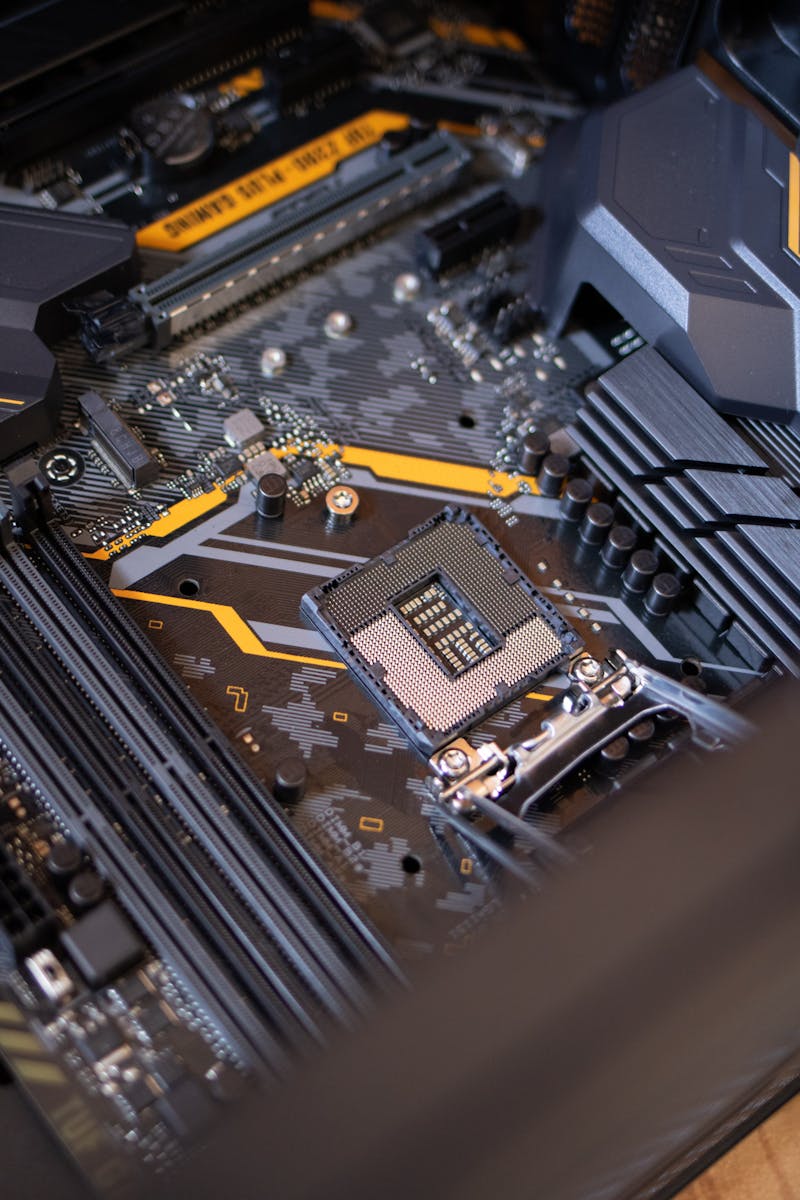
Step Screenshot 3.1: Hardware Diagnostic testing physical RAM modules for system faults.
Step-by-Step Instructions:
- Press Windows Key + R to open the Run dialog box.
- Type mdsched.exe and press Enter.
- Select Restart now and check for problems (recommended).
- Your computer will reboot into a blue diagnostic screen and test memory sticks for hardware errors automatically.
Method 4: Uninstall Third-Party Antivirus Software
Third-party security suites (such as Avast, Bitdefender, or McAfee) hook deeply into kernel services. Updates can cause immediate conflicts with Windows kernel drivers.
- Press Windows Key + I to open Settings.
- Navigate to Apps > Installed Apps.
- Locate third-party antivirus software, click the three dots menu, and choose Uninstall.
- Windows Defender will automatically activate to maintain system security.
Method 5: Analyze Minidump Files using WinDbg
If BSOD crashes persist, checking the crash dump stored in C:\Windows\Minidump precisely identifies the exact driver file responsible.
kd> !analyze -v
SYSTEM_SERVICE_EXCEPTION (3b)
MODULE_NAME: nvlddmkm
IMAGE_NAME: nvlddmkm.sys (NVIDIA Display Driver Kernel Module)
FAILURE_BUCKET_ID: 0x3B_nvlddmkm!process_graphics_queue
“Reading the minidump file via WinDbg eliminates guessing by displaying the exact `.sys` driver binary that triggered the kernel exception.” — Asdullah Systems Engineering Desk
Institutional & Technical Reference Index
Explore official technical manuals and crash troubleshooting documentation:
Conclusion
The SYSTEM_SERVICE_EXCEPTION blue screen is almost always resolvable without a full Windows reinstallation. Updating display drivers, running SFC/DISM file repairs, removing conflicting antivirus tools, and checking RAM integrity will restore complete system stability.
For more OS maintenance, hardware diagnostics, and web optimization guides, visit Asdullah.com.
#SystemServiceException
#WindowsDiagnostics
#DriverUpdate
#SFCScannow
