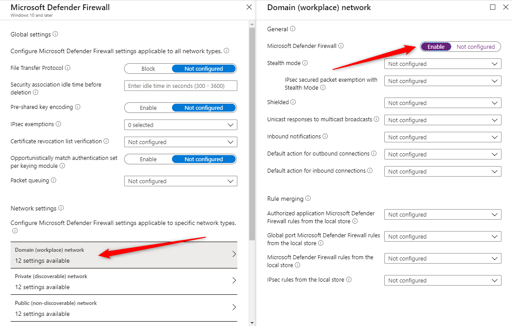
How to Fix Windows Defender Firewall Blocking Apps
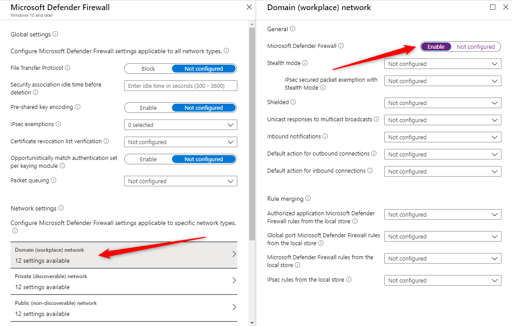
Image 1: Windows Defender Firewall settings screen.
Quick Summary
If Windows Defender Firewall is blocking an app, the app may not connect to the internet, join a game server, or share files. The easiest fix is to allow the app through the firewall and make sure it has permission on the correct network type.
If that does not work, you can check advanced firewall rules, reset the firewall, or review other security software that may also be blocking the app.
Why Firewall Blocks Apps
Windows Defender Firewall protects your computer by blocking unwanted traffic. Sometimes it blocks a trusted app by mistake, especially after an update or a new installation.
-
- >
New app was not allowed:
-
- Windows may block a program until you permit it.
>Wrong network type: The app may be allowed only on Private or only on Public networks.
>Firewall rule issue: A bad rule may stop the app from connecting.
>Administrator permission missing: You may not have rights to change settings.
>Other security software: Another antivirus or firewall may also be blocking it.
Method 1: Allow the App Through Firewall
This is the most common fix. If the app is trusted, you can allow it through Windows Defender Firewall so it can connect properly.
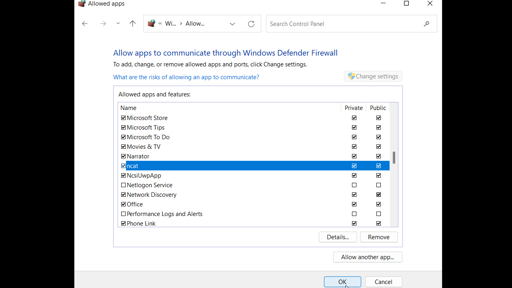
Image 2: Allow an app through the firewall.
- >Open
Windows Security
-
- .
>Go to Firewall & network protection.
>Click Allow an app through firewall.
>Click Change settings.
>Find the app in the list or click Allow another app.
>Check the boxes for Private and/or Public.
>Click OK.
If the app is not listed, browse to the program’s .exe file and add it manually.
Method 2: Use the Correct Network Type
Sometimes the app is allowed only on one network type. For example, it may work on a Private network but not on Public Wi-Fi.
- >Open
Settings
-
- .
>Go to Network & internet.
>Select your active network.
>Change the network profile to Private if needed.
>Try the app again.
This is useful for apps like file sharing tools, printers, local game servers, or home network software.
Method 3: Open Firewall with Advanced Security
If the simple allow list is not enough, you can create a rule in advanced firewall settings. This gives more control over the app connection.
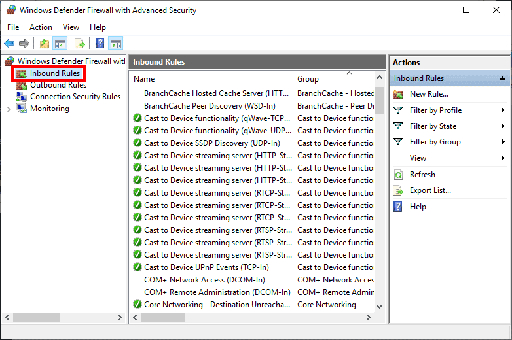
Image 3: Windows Defender Firewall with Advanced Security.
wf.msc
In Windows Defender Firewall with Advanced Security, create an inbound or outbound rule for the app’s .exe file and set it to allow the connection.
Method 4: Check If Firewall Settings Are Greyed Out
If the Change settings button is greyed out, you may not have administrator rights. You need admin permission to edit allowed apps.
- >Sign in with an administrator account.
>Open firewall settings again.
>Try Change settings once more.
Method 5: Reset Firewall to Defaults
If the firewall is blocking apps because rules got messy, resetting the firewall can help. This should be used when you do not know which rule is causing the problem.
Firewall & network protection
Restore firewalls to default
After the reset, you may need to allow trusted apps again.
Method 6: Check Other Security Software
Another antivirus or third-party firewall may also be blocking the app. If you use extra security software, check its firewall settings too.
- >Open your antivirus software.
>Look for firewall or app control settings.
>Add the same app there if needed.
>If necessary, temporarily disable the third-party firewall to test.
Method 7: Reinstall the App
If only one app is blocked and the settings look correct, the app itself may be broken. Reinstalling it can fix missing or damaged files.
- >Uninstall the app.
>Restart your PC.
>Download the latest version from the official source.
>Install it again and test the connection.
Useful Links
-
- >
FAQ
Why is Windows Defender Firewall blocking my app?
It may not trust the app yet, or the app may not have the right network permission.
Should I allow apps on Public networks?
Only if you really need it. Private is usually safer.
What if the app is not listed?
Add it manually by browsing to its .exe file.
Can resetting the firewall help?
Yes, if the rules are broken or confusing.
Conclusion
Windows Defender Firewall blocking apps is common and usually easy to fix. Start by allowing the app through the firewall, checking the network type, and making sure the right .exe file is added.
If that does not work, use advanced firewall settings, reset the firewall, or check for another security app that
