
How to Fix “Your PC Ran Into a Problem and Needs to Restart” Loop
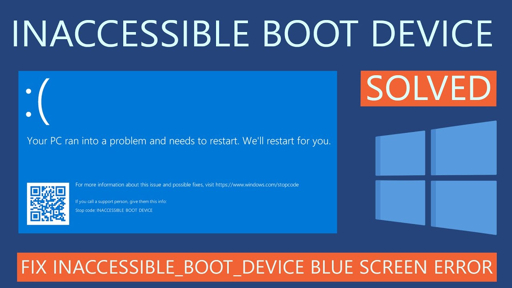
Image 1: A Windows restart loop or blue screen error.
Quick Summary
If your PC keeps showing “Your PC ran into a problem and needs to restart” and then restarts again and again, you may be stuck in a blue screen loop. This can happen because of bad drivers, corrupt system files, update problems, or failing hardware.
The good news is that many users can fix this by entering Recovery Mode, starting Safe Mode, running repair commands, uninstalling updates, or using System Restore.
Why This Loop Happens
The restart loop usually happens when Windows crashes during startup and cannot recover normally. The issue may be caused by a broken driver, bad Windows update, file corruption, disk errors, or overheating.
- Driver problems: A bad driver can crash Windows during boot.
- Corrupt system files: Windows files may be damaged.
- Update issues: A failed update can cause repeated crashes.
- Disk or RAM problems: Hardware errors can also trigger the loop.
- Startup conflicts: Software or services can stop Windows from loading.
Method 1: Force Windows Recovery Mode
If Windows will not boot, you need to open Recovery Mode first. You can do this by interrupting the boot process a few times.
- Turn on your PC.
- As soon as the Windows logo appears, hold the power button to turn it off.
- Repeat this 2 or 3 times.
- Windows should open the Recovery screen.
From there, you can access troubleshooting tools that help fix the restart loop.
Method 2: Start in Safe Mode
Safe Mode loads only the basic Windows files. This makes it easier to remove bad drivers, uninstall updates, or run repair tools.
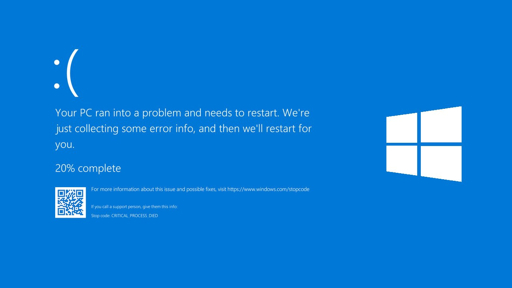
Image 2: Windows troubleshooting and startup repair area.
- Open Recovery.
- Go to Troubleshoot > Advanced options.
- Choose Startup Settings.
- Click Restart.
- Press F4 for Safe Mode or F5 for Safe Mode with Networking.
Method 3: Uninstall Recent Updates
If the loop started after a Windows update, removing the latest update may fix it. This is one of the fastest solutions when the problem started recently.
Advanced options
Uninstall Updates
Choose the latest quality update first. If that does not help, try the feature update uninstall option if available.
Method 4: Run Startup Repair
Startup Repair is a built-in Windows tool that can fix boot problems automatically. It is a good first repair tool if Windows keeps restarting.
- Open Advanced options.
- Select Startup Repair.
- Choose your Windows installation.
- Let Windows scan and repair startup files.
Method 5: Run SFC and DISM
If the problem is caused by damaged system files, SFC and DISM can help. These tools repair Windows files and fix the component store.
DISM /Online /Cleanup-Image /RestoreHealth
Run DISM first if Windows can open normally or in Safe Mode. Then run SFC after DISM finishes.
Method 6: Check Disk for Errors
Hard drive errors can keep causing the restart loop. CHKDSK checks the drive for file system problems and bad sectors.
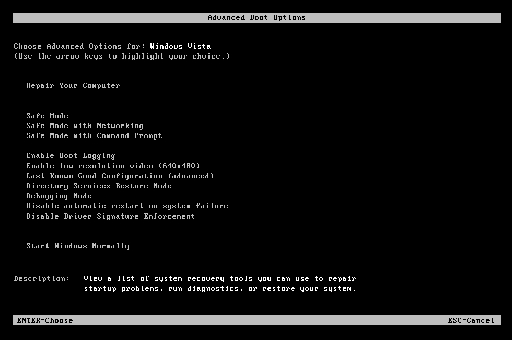
Image 3: Command Prompt inside Windows Recovery.
If your Windows drive is not C:, use the correct drive letter. Let the scan finish before restarting.
Method 7: Remove New Hardware or Drivers
If you recently added new hardware, a new driver, or a USB device, it may be causing the crash. Removing it can help Windows boot normally again.
- Unplug new USB devices.
- Remove any recently installed internal hardware if possible.
- Uninstall suspicious drivers in Safe Mode.
- Restart and test again.
Method 8: Use System Restore
System Restore takes Windows back to an earlier working state. This is very useful if the restart loop started after a change.
- Go to Advanced options.
- Choose System Restore.
- Select a restore point from before the issue started.
- Follow the on-screen steps.
Method 9: Check RAM and Hardware
Faulty RAM or a failing SSD can also cause repeated blue screen restarts. If software fixes do not help, hardware testing may be needed.
- Run Windows Memory Diagnostic.
- Check SSD health.
- Look for overheating.
- Test with minimal hardware if possible.
Useful Links
- Asdullah.com
- Windows Support
- Microsoft Support
- Wikipedia: Blue screen of death
- Wikipedia: Windows Recovery Environment
- Microsoft
- Windows Help
FAQ
Why does my PC keep restarting after a blue screen?
The system is crashing during boot and trying again. This usually means a driver, update, file, or hardware problem.
What should I try first?
Enter Recovery Mode, then try Safe Mode, Startup Repair, and update removal.
Can SFC and DISM fix the loop?
Yes, if the loop is caused by corrupted Windows files.
Do I need to reinstall Windows?
Only if the other repair steps fail.
Conclusion
A Windows restart loop can look serious, but many cases are fixable. Start with Recovery Mode and Safe Mode, then use Startup Repair, SFC, DISM, CHKDSK, System Restore, and driver removal.
If nothing works, check hardware like RAM and SSD health before reinstalling Windows. Most users can solve the issue without losing their files if they follow the steps in order.
