
How to Repair Corrupted System Files Using SFC and DISM Commands
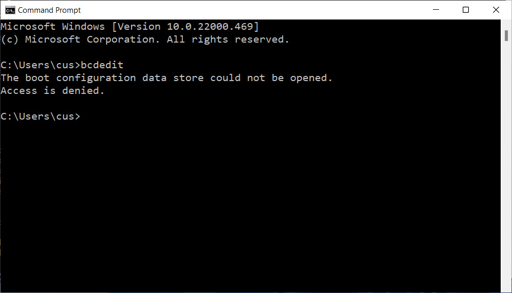
Image 1: Open Command Prompt as Administrator before running repair commands.
Quick Summary
If your Windows PC is crashing, freezing, showing errors, or acting strange, the problem may be corrupted system files. Windows has two built-in tools that can help: SFC and DISM.
SFC means System File Checker. DISM means Deployment Imaging Servicing and Management. The best order is to run DISM first and then run SFC.
What Do SFC and DISM Do?
SFC scans Windows protected system files and tries to replace corrupted or missing files with healthy copies. DISM repairs the Windows image or component store, which is the source SFC uses for repairs.
- SFC: Checks protected Windows files and fixes them when possible.
- DISM: Repairs the Windows image and component store.
- Best order: Run DISM first, then run SFC.
Why Do System Files Get Corrupted?
System files can become damaged because of sudden shutdowns, bad updates, malware, disk errors, driver issues, or failed installations. When that happens, Windows may start behaving in a slow, unstable, or broken way.
Method 1: Open Command Prompt as Administrator
You must run both tools with admin rights. If you do not open Command Prompt as administrator, the commands may fail or give limited results.
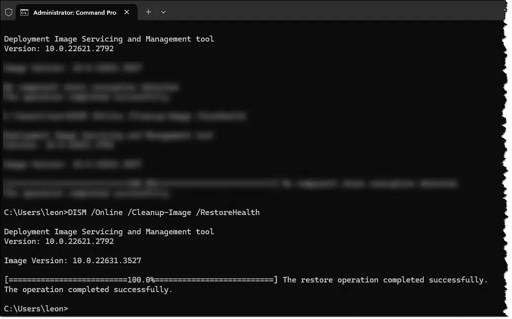
Image 2: A Command Prompt window used for DISM repairs.
- Press Windows + S and type cmd.
- Right-click Command Prompt.
- Choose Run as administrator.
- Click Yes if Windows asks for permission.
Once the black Command Prompt window opens, you can start the repair process. Windows works best when DISM is run before SFC.
Method 2: Check the Health of Windows Image
Before doing a full repair, you can check whether Windows thinks the image is healthy. These checks help you know how serious the problem is.
DISM /Online /Cleanup-Image /ScanHealth
CheckHealth is a quick check. ScanHealth takes longer and does a deeper scan. If Windows finds corruption, move to RestoreHealth.
Method 3: Repair Windows with DISM
This is the most important DISM command. It checks the component store and repairs it using Windows Update or another valid source. This step should come before SFC when the Windows image may be damaged.
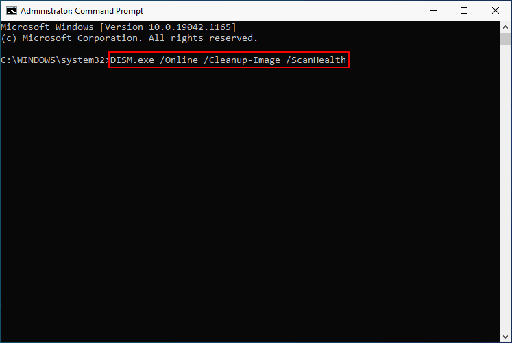
Image 3: Example of using DISM to repair Windows image files.
If the command finishes successfully, DISM repairs the Windows image and prepares the system for the next step. If it says the source files could not be found, you may need an ISO or installation media as a repair source.
If DISM Needs a Source
Sometimes DISM cannot get files from Windows Update. In that case, you can point it to a repair source, such as a Windows ISO. This is useful when the online repair path fails.
Replace X: with the correct drive letter for your mounted ISO or installation USB. This advanced option is very helpful when Windows Update is not available or not working.
Method 4: Scan and Repair System Files with SFC
After DISM repairs the Windows image, use SFC to scan the protected system files. SFC compares your files with the healthy repair source and fixes the broken ones when possible.
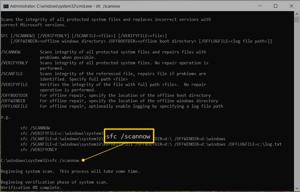
Image 4: SFC scanning and repairing Windows system files.
SFC may take several minutes to finish. Do not close the window while it is running. When the scan ends, read the result carefully because it tells you what Windows found and whether it repaired the files.
How to Read SFC Results
SFC usually gives one of a few common messages. Each message tells you what to do next.
- Windows Resource Protection did not find any integrity violations: Your files look fine. If problems continue, check drivers or hardware.
- Windows Resource Protection found corrupt files and successfully repaired them: The repair worked. Restart your PC.
- Windows Resource Protection found corrupt files but was unable to fix some of them: Run DISM again and then run SFC one more time.
Method 5: Use SFC in Safe Mode
If normal Windows mode keeps failing, Safe Mode can help. Safe Mode loads fewer drivers and services, so SFC may work better there.
- Restart your PC.
- Enter Advanced startup or Recovery.
- Choose Safe Mode with Command Prompt if available.
- Run sfc /scannow again.
This method is useful when a normal boot keeps interrupting the repair process. If Safe Mode works, you may finish the scan without extra errors.
Method 6: Use SFC and DISM Offline
If Windows will not boot normally, you can use offline repair commands from the Recovery Environment. These commands point to the installed Windows folder without booting into the desktop first.
The drive letter may be different in recovery mode, so make sure you use the correct Windows partition letter. This is a useful option when the desktop cannot load.
Important Extra Step: Check the Drive
If your drive has bad sectors or file system errors, SFC and DISM alone may not solve the problem. It is a good idea to check the drive at the same time as file repair steps.
If CHKDSK finds drive damage, let it finish. A failing drive can keep causing file corruption until the hardware problem is fixed.
Best Order to Use the Commands
If you are not sure where to start, use this order. It is the safest and most recommended sequence for most Windows repair cases.
- Open Command Prompt as administrator.
- Run DISM /Online /Cleanup-Image /RestoreHealth.
- Run sfc /scannow.
- If needed, run chkdsk to check disk errors.
- Restart your computer and test again.
Extra Tips
- Always run Command Prompt as administrator.
- Do not shut down your PC while DISM or SFC is running.
- If Windows Update is broken, use a source file with DISM.
- If SFC keeps failing, run DISM again and then retry SFC.
- If the drive is failing, fix the hardware first or back up your data.
FAQ
Which command should I run first?
Run DISM first, then SFC. This is the best order when the Windows image may be damaged.
Can these commands delete my files?
No, these commands repair Windows system files and do not usually delete personal files.
What if SFC says it could not repair some files?
Run DISM again, then run SFC again. If the problem still remains, check the drive with CHKDSK or use a repair source.
Can I use these commands on Windows 10 and Windows 11?
Yes, both tools are built into Windows 10 and Windows 11.
Conclusion
SFC and DISM are two of the best built-in Windows repair tools. If your system files are corrupted, these commands can fix many problems without needing a full reinstall.
The simplest rule is this: run DISM first, then run SFC. If needed, add CHKDSK to check the drive and use a repair source when Windows Update cannot help.
