
How to Repair Windows Boot Manager (BCD) Using Command Prompt
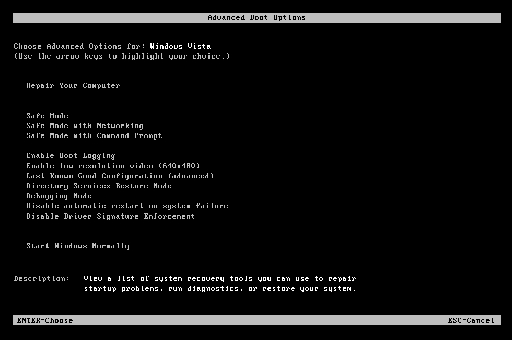
Image 1: Windows Recovery Command Prompt used to repair boot files.
Quick Summary
If your PC shows boot errors like BOOTMGR is missing, BCD is missing, or Windows will not start, the Boot Configuration Data file may be damaged. The BCD tells Windows how to load the operating system during startup.
You can often fix the problem from Command Prompt in the Windows Recovery Environment by using bootrec, bcdedit, and sometimes bcdboot.
What Is BCD?
BCD stands for Boot Configuration Data. It is a small boot database that tells Windows where the operating system is and how to load it during startup.
If BCD gets corrupted, Windows may stop booting. That is why repairing or rebuilding it is a common fix for startup problems.
When Should You Use This Fix?
Use this method if your computer is stuck at startup, shows a black screen with boot errors, or says Windows cannot load properly. It is also useful after boot record damage, failed updates, or partition changes.
- Windows will not start normally.
- You see boot manager errors.
- Startup Repair did not help.
- The BCD store is damaged or missing.
- The boot order or boot files were changed.
Method 1: Open Command Prompt in Recovery Mode
You need to open Command Prompt from Windows Recovery. You usually cannot fix BCD from normal Windows if the PC will not boot.
- Turn on your PC.
- Boot into Windows Recovery Environment.
- Go to Troubleshoot.
- Choose Advanced options.
- Click Command Prompt.
Method 2: Try the Basic Bootrec Commands
These commands repair the master boot record, boot sector, and BCD store. Microsoft support recommends using Bootrec.exe to repair startup problems and rebuild the BCD store when needed.
bootrec /fixboot
bootrec /scanos
bootrec /rebuildbcd
Run each command one by one and press Enter after each line. If Windows finds your installation, you may be asked to add it to the boot list.
Method 3: Export and Rebuild BCD
If the basic rebuild does not work, Microsoft documents a stronger method. First back up the BCD store, then rename the old file, and then rebuild it again.
- Type bcdedit /export C:\BCD_Backup and press Enter.
- Type c: and press Enter.
- Type cd boot and press Enter.
- Type attrib bcd -s -h -r and press Enter.
- Type ren c:\boot\bcd bcd.old and press Enter.
- Type bootrec /rebuildbcd and press Enter.
This method is useful when the BCD store is badly damaged. If Windows still does not boot after this, the issue may be deeper than BCD alone.
Method 4: Use Bcdboot if Bootrec Fails
Sometimes bootrec /rebuildbcd does not find the Windows installation, or bootrec /fixboot gives an access denied message. In that case, you can use bcdboot to create boot files again.
If your system uses UEFI, the command may need a different EFI partition letter. In recovery mode, drive letters can change, so check carefully before running the command.
Method 5: Check the Windows Partition Letter
In recovery mode, Windows may not always be on drive C:. If the wrong drive letter is used, the repair commands will fail.
- Open Command Prompt.
- Type diskpart.
- Type list volume.
- Find the volume that contains Windows.
- Use the correct drive letter in your commands.
Method 6: Rebuild Boot Files from Scratch
If the old BCD file is too broken, deleting it and rebuilding boot files from scratch can help. This should be done carefully and only if the earlier steps do not work.
bootrec /fixmbr
bootrec /fixboot
bootrec /rebuildbcd
This method is often used when the BCD store is corrupted beyond repair. Always back up what you can before making bigger changes.
Method 7: Use Startup Repair First
Before using manual commands, you can try Startup Repair. It sometimes fixes boot problems automatically without needing to type anything.
- Open Recovery.
- Go to Troubleshoot > Advanced options.
- Click Startup Repair.
- Let Windows scan and fix startup issues.
Useful Commands at a Glance
- bootrec /fixmbr — repairs the master boot record.
- bootrec /fixboot — repairs the boot sector.
- bootrec /scanos — scans for Windows installations.
- bootrec /rebuildbcd — rebuilds the BCD store.
- bcdedit /export — backs up the BCD store.
- bcdboot — creates new boot files.
FAQ
Can I fix BCD without reinstalling Windows?
Yes. In many cases, Bootrec or Bcdboot can repair the boot manager without a full reinstall.
Why does bootrec /fixboot say access denied?
This can happen when the EFI or boot partition is not set correctly, or when the boot environment needs a different repair method.
Is BCD the same as Boot Manager?
No. Boot Manager reads the BCD file to know how to start Windows.
Will these commands delete my files?
These boot repair commands are not meant to delete personal files, but you should still be careful and back up data if possible.
Conclusion
Repairing Windows Boot Manager and the BCD store is one of the most useful fixes for startup problems. Most users should start with bootrec /fixmbr, bootrec /fixboot, bootrec /scanos, and bootrec /rebuildbcd.
If that is not enough, back up the BCD store, rename
