How to Resolve Black Screen with Cursor After Windows Login
Image 1: Black screen with cursor after login.
Quick Summary
If your screen goes black after login but the mouse cursor still appears, Windows may not be loading the desktop correctly. This usually happens because of a broken Explorer process, a graphics driver problem, a startup issue, or a damaged user profile.
The best fixes are restarting Explorer, refreshing the graphics driver, disabling Fast Startup, booting into Safe Mode, and repairing Windows files if needed.
Why This Problem Happens
Windows may be running in the background, but the desktop does not load. That is why you only see a black screen and a cursor. The issue can come from software, display drivers, updates, or profile corruption.
- Explorer did not start: The taskbar and desktop icons do not appear.
- Graphics driver issue: The display may freeze right after login.
- Fast Startup glitch: Windows may not boot cleanly after shutdown.
- Bad Windows update: A recent update may break the login process.
- User profile problem: Your account may be damaged or not loading.
Method 1: Restart Windows Explorer
This is the first thing you should try. If Explorer is stuck, your desktop will not appear even though Windows is running in the background.
- Press Ctrl + Shift + Esc to open Task Manager.
- Click File and choose Run new task.
- Type explorer.exe.
- Press Enter.
If the desktop returns, the issue was likely a simple Explorer crash.
Method 2: Refresh the Graphics Driver
Sometimes the display driver freezes after login. Windows has a shortcut that can restart the graphics driver without rebooting the whole system.
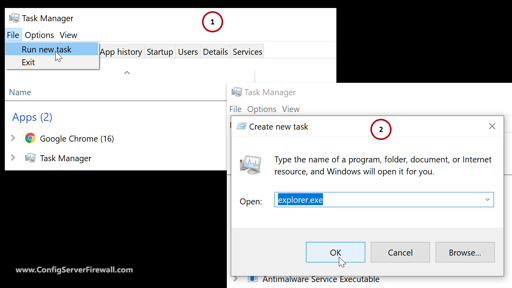
Image 2: Restarting Explorer from Task Manager.
Your screen may blink for a second. If the issue is only a driver freeze, this can bring the desktop back.
Method 3: Disable Fast Startup
Fast Startup can cause problems after shutdown. Turning it off is often helpful when black screen issues happen after logging in.
- Open Task Manager.
- Click File > Run new task.
- Type control and press Enter.
- Go to Power Options.
- Click Choose what the power buttons do.
- Click Change settings that are currently unavailable.
- Uncheck Turn on fast startup.
- Save changes and restart.
Method 4: Boot Into Safe Mode
Safe Mode starts Windows with only the basics. This makes it easier to remove bad drivers, fix updates, or test whether a startup app is causing the problem.
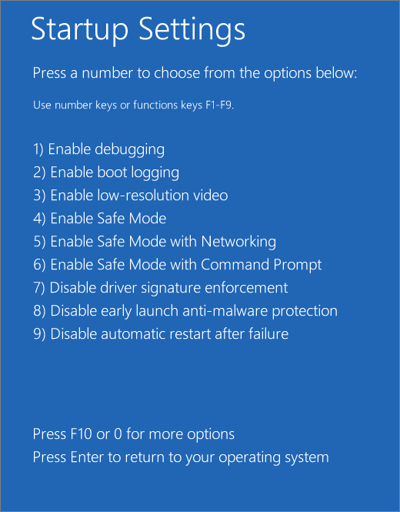
Image 3: Startup Settings for Safe Mode.
Troubleshoot
Advanced options
Startup Settings
Safe Mode
If Safe Mode works, the issue is probably caused by a driver, service, or startup program.
Method 5: Run SFC and DISM
Corrupt Windows files can also cause a black screen after login. SFC and DISM help repair system files and the Windows image.
DISM /Online /Cleanup-Image /RestoreHealth
Run these commands from an elevated Command Prompt. After they finish, restart the computer and test again.
Method 6: Check for Updates
Some black screen problems are caused by bugs that Microsoft fixes in later updates. Installing all pending updates can solve the issue.
- Open Settings.
- Go to Windows Update.
- Click Check for updates.
- Install updates and restart.
Method 7: Try a New User Account
If your profile is damaged, Windows may show a black screen only for your account. A new account helps check that quickly.
- Open Task Manager.
- Run cmd as administrator.
- Create a new user if needed.
- Restart and sign in to the new account.
Method 8: Remove Recent Updates
If the issue started after an update, uninstalling the latest Windows update may fix it.
- Open Recovery Mode.
- Go to Troubleshoot > Advanced options.
- Choose Uninstall Updates.
- Remove the latest quality update first.
Useful Links
- Asdullah.com
- Windows Support
- Microsoft Support
- Wikipedia: Black screen of death
- Wikipedia: Windows Recovery Environment
- Microsoft
Conclusion
A black screen with cursor after login can feel serious, but it is often fixable. Start with Explorer, refresh the graphics driver, and try Safe Mode if needed.
If those steps do not work, repair Windows files, check for updates, and test a new user account. Most users can solve the problem without reinstalling Windows.
