
How to Resolve “No Bootable Device Found” Error (Step-by-Step)
Executive Summary & Diagnostic Flowchart
The “No Bootable Device Found” error occurs when your computer’s motherboard cannot detect a drive (SSD, HDD, or USB) containing an operating system kernel. This is usually caused by incorrect BIOS boot priority, disconnected SATA/NVMe cables, corrupt Boot Configuration Data (BCD), or hard drive hardware failure.
│
▼
┌───────────────────────────────────────────────────────────────────────┐
│ STEP 1: Check Boot Priority Order │
│ ├─► SSD/HDD Listed? ──► Set as Boot Option #1 & Restart │
│ └─► Drive Missing? ──► Proceed to Cable / Connection Check │
└─────────────────────────────────────────────┬─────────────────────────┘
│
▼
┌───────────────────────────────────────────────────────────────────────┐
│ STEP 2: Toggle Boot Mode & Hard Drive Connections │
│ ├─► Switch between UEFI & Legacy / CSM Boot │
│ └─► Re-seat SATA / NVMe Drive Physically │
└─────────────────────────────────────────────┬─────────────────────────┘
│
▼
[ OS REPAIR ] ──► Rebuild Boot Records (BCD) via CMD ──► [System Stabilizer]
Step 1: Disconnect All External Devices
Before making system adjustments, remove all external peripherals such as USB flash drives, external hard drives, memory cards, and secondary devices. Sometimes, the computer’s motherboard mistakenly attempts to boot from an unbootable external USB stick.

Visual 1.1: Unplug all external USB flash drives and hard drives before restarting your PC. (Image Source: Unsplash Tech Library)
Step 2: Access BIOS/UEFI Settings & Check Boot Order
If the system cannot locate your hard drive, your BIOS/UEFI configuration may have reverted to default settings or changed its primary boot sequence.
- Turn off your computer completely.
- Power it back on and immediately tap the BIOS key repeatedly (usually F2, Del, F10, or F12 depending on your brand like Dell, HP, Lenovo, or ASUS).
- Navigate to the Boot tab using your keyboard arrow keys.
- Ensure your primary SSD or Hard Drive (e.g., Windows Boot Manager) is set as Boot Option #1.
- Press F10 to Save & Exit.
[ UEFI MENU ]
Boot Option Priorities:
Image Reference: Wikimedia Commons – BIOS Screen Reference | Technical Consult: Asdullah BIOS Support
Step 3: Toggle Boot Mode (UEFI vs. Legacy CSM)
Older operating systems use Legacy MBR Mode, while modern Windows 10/11 installations require UEFI GPT Mode. If this setting changes unexpectedly, Windows will fail to boot.
- If your computer is currently set to Legacy, switch it to UEFI.
- If it is set to UEFI, try enabling CSM (Compatibility Support Module) or Legacy Boot Mode.
- Check whether Secure Boot is causing conflicts (try disabling it temporarily to test). For complete boot mode configuration, visit Asdullah System Setup.
Step 4: Re-seat Hard Drive (SATA / NVMe Connection)
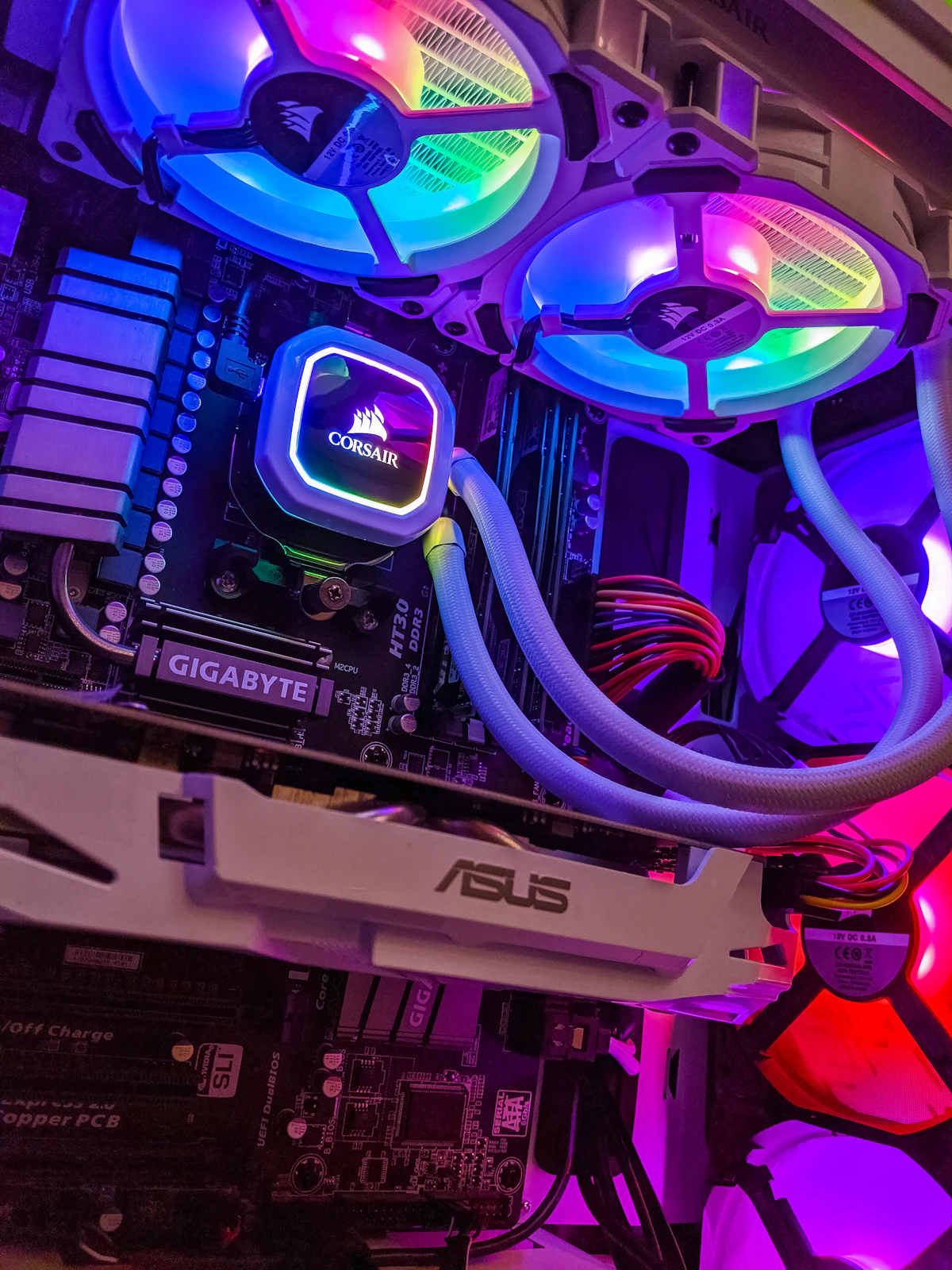
If your hard drive is not detected inside BIOS at all, physical disconnection might be the issue. Drops, vibrations, or dust accumulation can loosen internal drive connectors on laptops and desktop PCs.

Visual 4.1: Carefully remove laptop back panel, unscrew the M.2 NVMe SSD or SATA hard drive, clean the contacts, and reconnect firmly. (Image Source: Wikimedia Commons Hardware Archive)
“Physical hardware checks save hours of unnecessary software troubleshooting. Always confirm your SSD is properly seated and receiving power before attempting operating system reinstallation.” — Asdullah Hardware Engineering Team
Step 5: Rebuild Boot Configuration Data (BCD) via Command Prompt
If your hardware is detected but Windows fails to load, the Boot Configuration Data (BCD) files may be corrupted. You can rebuild BCD files using a bootable Windows Installation USB media.
- Boot your PC using a Windows 10/11 Bootable USB Media Drive.
- Select your language settings and click Next.
- Click Repair your computer in the bottom-left corner.
- Navigate to Troubleshoot > Advanced Options > Command Prompt.
- Execute the following commands sequentially:
The operation completed successfully.
X:\Sources> bootrec /fixboot
The operation completed successfully.
X:\Sources> bootrec /scanos
Scanning all disks for Windows installations… Total identified Windows installations: 1
X:\Sources> bootrec /rebuildbcd
Add installation to boot list? Yes(Y)/No(N)/All(A): Y
For additional command-line recovery guides, visit Asdullah Recovery Desk.
Institutional & Technical Reference Index
Explore official technical documentation and hardware manuals:
Conclusion
Fixing the “No Bootable Device Found” error involves a systematic approach: starting with removing external storage, adjusting BIOS/UEFI boot orders, re-seating physical drive cables, and rebuilding corrupted Windows boot files via CMD. If your drive remains undetected across multiple computers, it may require professional data recovery or drive replacement.
Need expert assistance with hardware diagnostics or web platform setups? Visit Asdullah.com.
#PCHardwareFix
#BIOSTroubleshooting
#WindowsRepair
#SSDRecovery
