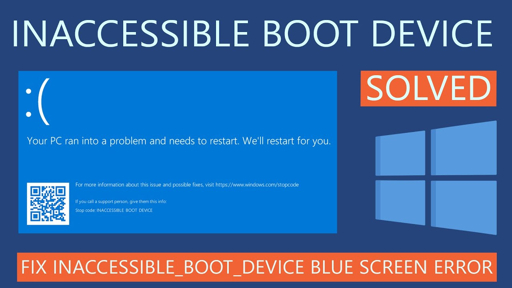
How to Solve “Inaccessible Boot Device” BSOD Error
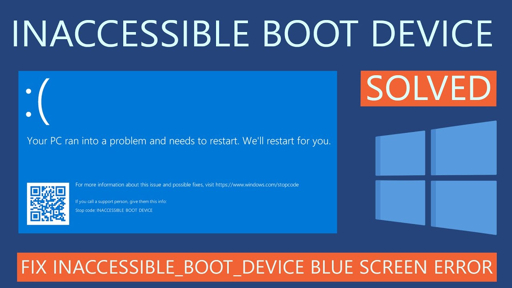
Image 1: The “Inaccessible Boot Device” blue screen error.
Quick Summary
If your computer shows the “Inaccessible Boot Device” blue screen, Windows cannot read the drive it needs to start. This error usually happens after a Windows update, a BIOS change, a driver problem, or damaged boot files. [32][4][28]
The good news is that this issue can often be fixed with a few simple repair steps. Start with easy checks first, then move to recovery tools if needed. [32][28]
Why Does This Error Happen?
This error means Windows lost access to the system drive during startup. It is often caused by wrong BIOS settings, broken boot files, failing storage, or a bad update. [32][4][28]
- BIOS or UEFI change: The storage mode may have changed from AHCI to RAID, or the boot order may be wrong. [4][25]
- Windows update issue: A recent update may have broken startup files or drivers. [33][28]
- Driver problem: The storage controller driver may be missing or wrong. [10][17]
- Boot file corruption: BCD, MBR, or boot files may be damaged. [32][25]
- Hardware issue: The SSD, HDD, or cable may be loose or failing. [4][17]
Method 1: Remove External Devices
Sometimes Windows tries to boot from the wrong device. A USB flash drive, memory card, or external hard disk can cause this error. [4][17]
Steps:
- Turn off your computer completely.
- Remove all USB drives, memory cards, printers, and external storage.
- Keep only the keyboard, mouse, and monitor connected.
- Turn the PC on again and check if Windows starts normally.
Method 2: Check BIOS or UEFI Settings
If BIOS storage mode changed, Windows may stop booting. This often happens after a BIOS reset or update. Restoring the correct boot and storage mode can fix the issue. [4][25][10]
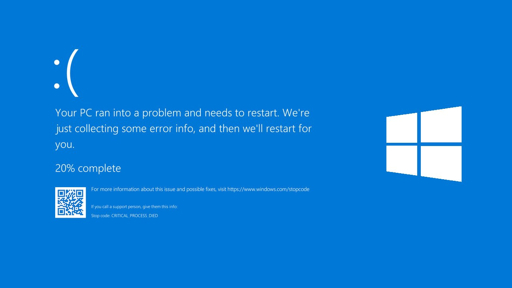
Image 2: Blue screen error shown on a laptop.
- Restart your PC and press the BIOS key like F2, Del, F10, or Esc.
- Find the storage or SATA setting in BIOS.
- Make sure the mode matches your system, usually AHCI, RAID, or the correct vendor mode. [4][25]
- Save the changes and restart the computer.
Method 3: Repair Boot Files in WinRE
If Windows still does not start, use the Windows Recovery Environment. Microsoft guidance says to boot into recovery and repair the boot files when the system cannot access the boot device. [32][31][28]
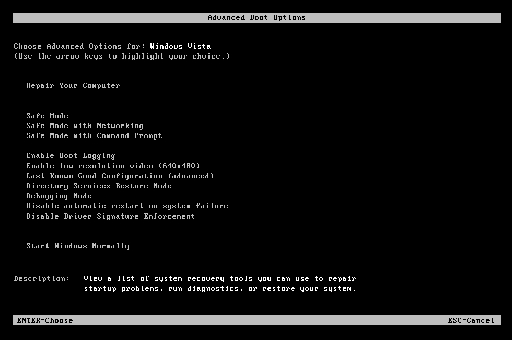
Image 3: Windows Recovery Command Prompt for boot repair.
bootrec /fixboot
bootrec /scanos
bootrec /rebuildbcd
Open Advanced options in Windows Recovery, then choose Command Prompt. Run the commands one by one and press Enter after each line. [32][25][36]
Method 4: Run Disk and System Repair
Drive errors can also stop Windows from loading. You can check the disk and repair system files using Command Prompt in recovery mode. [32][1][28]
sfc /scannow /offbootdir=C:\ /offwindir=C:\Windows
dism /image:C:\ /cleanup-image /restorehealth
If your Windows drive is not C:, replace it with the correct drive letter. These commands can take some time, so let them finish fully. [32][1][33]
Method 5: Uninstall Recent Updates
If the problem started after a Windows update, removing that update may help. This is a common fix when the PC was working fine before the update. [33][28]
- Open Windows Recovery.
- Go to Troubleshoot > Advanced options.
- Choose Uninstall Updates.
- Remove the latest quality update first.
- Restart your PC and test again.
Extra Tips
- If you recently changed BIOS settings, put them back to the previous values first. [4][25]
- If the SSD or hard drive is not detected, check the cable and hardware connection. [17][4]
- If you can enter Safe Mode, remove recent drivers or software that may be causing the error. [10][28]
- If nothing works, back up your data and do a clean Windows install only as a last option. [10][28]
FAQ
Is this error caused by a virus?
Sometimes malware can damage boot files, but most cases are caused by updates, BIOS changes, or storage problems. [15][28]
Will I lose my files?
Most repair steps do not delete files. Still, if the drive is failing, it is best to back up data as soon as possible. [4][17]
Can this happen on laptops and desktops?
Yes. This error can happen on Windows laptops, PCs, and desktop computers from many brands. [10][17]
Conclusion
The “Inaccessible Boot Device” BSOD error can look serious, but it is often fixable. In many cases, the problem comes from BIOS settings, a bad update, or damaged boot files. [32][28]
Start with simple steps like removing external devices and checking BIOS settings. If that does not work, use recovery tools like bootrec, chkdsk, and sfc to repair Windows. [32][1][28]
