How to Upgrade Laptop RAM: Compatibility & Installation Guide
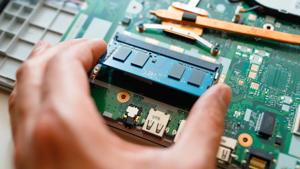
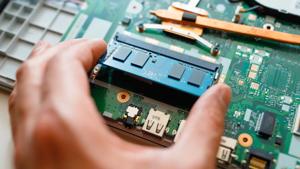
Image 1: Installing a new RAM module in a laptop.
Quick Summary
Upgrading your laptop RAM is one of the easiest and most effective ways to improve performance. More RAM means better multitasking, faster app launches, and smoother overall experience.
The key steps are: check your current RAM, find out what type your laptop supports (DDR3, DDR4, or DDR5), buy a compatible module, and install it carefully. Most upgrades take 15 to 30 minutes.
What You Need Before Starting
- Compatible RAM module (correct DDR type, speed, and form factor)
- Small Phillips screwdriver (usually PH0 or PH1)
- Plastic pry tool or guitar pick for the back cover
- Anti-static wrist strap (recommended but optional)
- Small tray for screws
- Microfiber cloth to work on
Step 1: Check Your Current RAM
Before buying new RAM, find out how much memory your laptop currently has and how many slots are available.
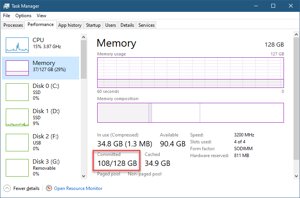
Image 2: Task Manager showing current RAM usage and available slots.
- Press Ctrl + Shift + Esc to open Task Manager.
- Click the Performance tab.
- Select Memory on the left sidebar.
- Check the total RAM and the number of Slots used.
You can also use the command line for more details:
This command shows the manufacturer, speed, capacity, and slot of each RAM stick installed.
Step 2: Check RAM Compatibility
Not all RAM works in all laptops. You must match the correct RAM type, speed, and form factor. Using the wrong type can cause boot failures or system instability.
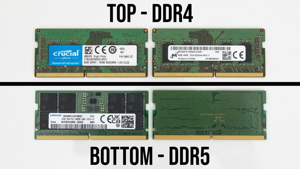
Image 3: DDR4 and DDR5 RAM modules have different notch positions and are not interchangeable.
RAM Types Explained
- DDR3: Older laptops (pre-2015). Runs at 1333 to 1600 MHz.
- DDR4: Most common in laptops from 2016 to 2022. Runs at 2133 to 3200 MHz.
- DDR5: Newest standard in laptops from 2023 onward. Runs at 4800 to 6400+ MHz.
Important: DDR4 and DDR5 are not interchangeable. They have different notch positions and will not fit in the wrong slot. Always buy the exact DDR type your laptop supports.
How to Find Compatible RAM
- Check your laptop model number on the bottom sticker.
- Search “your laptop model + RAM upgrade” or “your laptop model + max RAM“.
- Visit the manufacturer’s website and look at the official spec sheet.
- Use RAM finder tools on Crucial.com or Kingston.com by entering your laptop model.
- Check the maximum supported RAM capacity (usually 8GB, 16GB, 32GB, or 64GB).
Step 3: Buy the Right RAM Module
Laptops use SO-DIMM memory, which is smaller than desktop RAM (DIMM). Make sure you buy SO-DIMM, not regular DIMM.
- Form factor: SO-DIMM (for laptops, not desktop DIMM)
- DDR type: DDR3, DDR4, or DDR5 (must match your laptop)
- Speed: Match or exceed current speed (e.g., 3200 MHz for DDR4)
- Capacity: 4GB, 8GB, 16GB, or 32GB per stick
- Brand: Buy from trusted brands like Crucial, Kingston, Corsair, or Samsung
If your laptop has two slots, you can install two identical sticks for dual-channel mode, which gives better performance than a single larger stick.
Step 4: Power Off and Prepare
- Shut down the laptop completely.
- Unplug the charger and all USB devices.
- Remove the battery if it is removable.
- Press and hold the power button for 10 seconds to drain residual charge.
- Ground yourself by touching a metal surface, or wear an anti-static wrist strap.
Warning: Static electricity can permanently damage RAM modules. Never touch the gold pins on the RAM stick. Hold modules only by the edges.
Step 5: Open the Laptop Back Cover
Most laptops have a removable back panel that gives access to the RAM slots. Some thinner laptops may require removing the entire bottom cover.
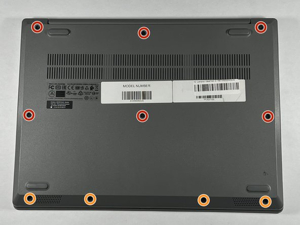
Image 4: Laptop back cover removed showing RAM slots and modules.
- Place the laptop upside down on a soft cloth.
- Remove all screws on the back panel. Some may be hidden under rubber feet.
- Use a plastic pry tool to carefully unclip the back cover.
- Start at a corner and work your way around the edges.
- Lift the cover off gently.
If your laptop has a dedicated RAM cover (a smaller panel), you only need to remove that panel, not the entire back cover.
Step 6: Remove the Old RAM (If Replacing)
If you are replacing an existing RAM stick with a larger one, you need to remove the old module first.
- Locate the RAM module(s) in the slot(s).
- Gently push the two metal clips on the sides outward.
- The RAM stick will pop up at a 30-degree angle.
- Pull the module straight out of the slot. Do not force it.
Never use metal tools to pry RAM out — the clips are delicate and can break.
Step 7: Install the New RAM
Now install the new RAM module into the empty or freed slot.
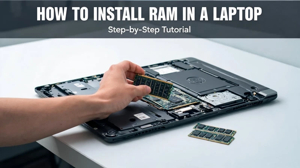
Image 5: Inserting the new SO-DIMM RAM module into the laptop slot at an angle.
- Hold the new RAM stick by the edges only.
- Align the notch on the RAM module with the ridge in the slot.
- Insert the module into the slot at a 30-degree angle.
- Push it in gently until it is fully seated in the slot.
- Press down on the module until the metal clips snap into place on both sides.
- You should hear a click when it locks in properly.
Insert at 30 degrees
Press down until clips snap
If the RAM does not click in, do not force it. Check that the notch is aligned correctly and that you have the right DDR type.
Step 8: Reassemble and Test
After installing the new RAM, put the laptop back together and test if the new memory is recognized.
- Place the back cover back on and press until all clips snap in.
- Screw all screws back into their original positions.
- Reconnect the battery if you removed it.
- Plug in the charger.
- Power on the laptop.
Once Windows loads, verify that the new RAM is recognized:
- Press Ctrl + Shift + Esc to open Task Manager.
- Go to Performance > Memory.
- Check if the total memory shows the upgraded amount.
- Check the Speed field to confirm the correct speed is detected.
If the laptop does not boot or shows a black screen, the RAM may not be seated properly. Open the laptop again, remove the RAM, and reinstall it carefully.
Can All Laptops Be Upgraded?
Not all laptops have upgradeable RAM. Many modern ultrabooks and thin laptops have RAM soldered directly to the motherboard with no slot for upgrading.
- Upgradeable: Most gaming laptops, budget laptops, and business laptops have SO-DIMM slots.
- Not upgradeable: Ultrabooks like MacBook Air, Dell XPS 13, and some HP Spectre models have soldered RAM.
- How to check: Search your laptop model + “RAM upgrade” or check on iFixit or the manufacturer’s service manual.
Common Mistakes to Avoid
- Buying the wrong DDR type: DDR4 will not fit in a DDR5 slot and vice versa.
- Touching gold pins: Finger oils can cause connection issues.
- Forcing the RAM in: If it does not click in, the notch is probably misaligned.
- Forgetting to power off: Installing RAM on a live laptop can short-circuit the module.
- Mixing speeds: If using two sticks of different speeds, both will run at the slower speed.
- Not grounding yourself: Static discharge can kill a RAM stick instantly.
Useful Links
- Asdullah.com
- Crucial RAM Finder
- Kingston Memory Search
- iFixit Repair Guides
- ZDNET: How to Add RAM to a Laptop
- Beebom: How to Upgrade Laptop RAM
FAQ
How much RAM do I need?
8GB is the minimum for basic use. 16GB is recommended for most users. 32GB is for heavy multitasking or video editing.
Can I mix RAM brands?
Yes, but it is not recommended. Two identical sticks from the same brand work best and enable dual-channel mode.
Can I upgrade DDR4 to DDR5?
No. DDR4 and DDR5 have different physical designs and are not interchangeable.
Is laptop RAM the same as desktop RAM?
No. Laptops use SO-DIMM (smaller) and desktops use DIMM (larger). They are not compatible.
What happens if I install the wrong RAM?
The laptop will not boot or will beep on startup. Remove the wrong RAM and reinstall the correct type.
Conclusion
Upgrading laptop RAM is one of the simplest and most effective performance upgrades you can do. The key is buying the correct compatible module — matching the DDR type, speed, and SO-DIMM form factor.
Always power off before opening the laptop, hold RAM by the edges, align the notch carefully, and test after installation. If your laptop has soldered RAM, unfortunately it cannot be upgraded and you would need to buy a new laptop with more memory.
