Laptop Overheating Fix: Clean Fans & Apply Thermal Paste
🔥 Laptop Overheating Fix: Clean Fans & Apply Thermal Paste
A simple, step-by-step guide anyone can follow — no tech degree needed!
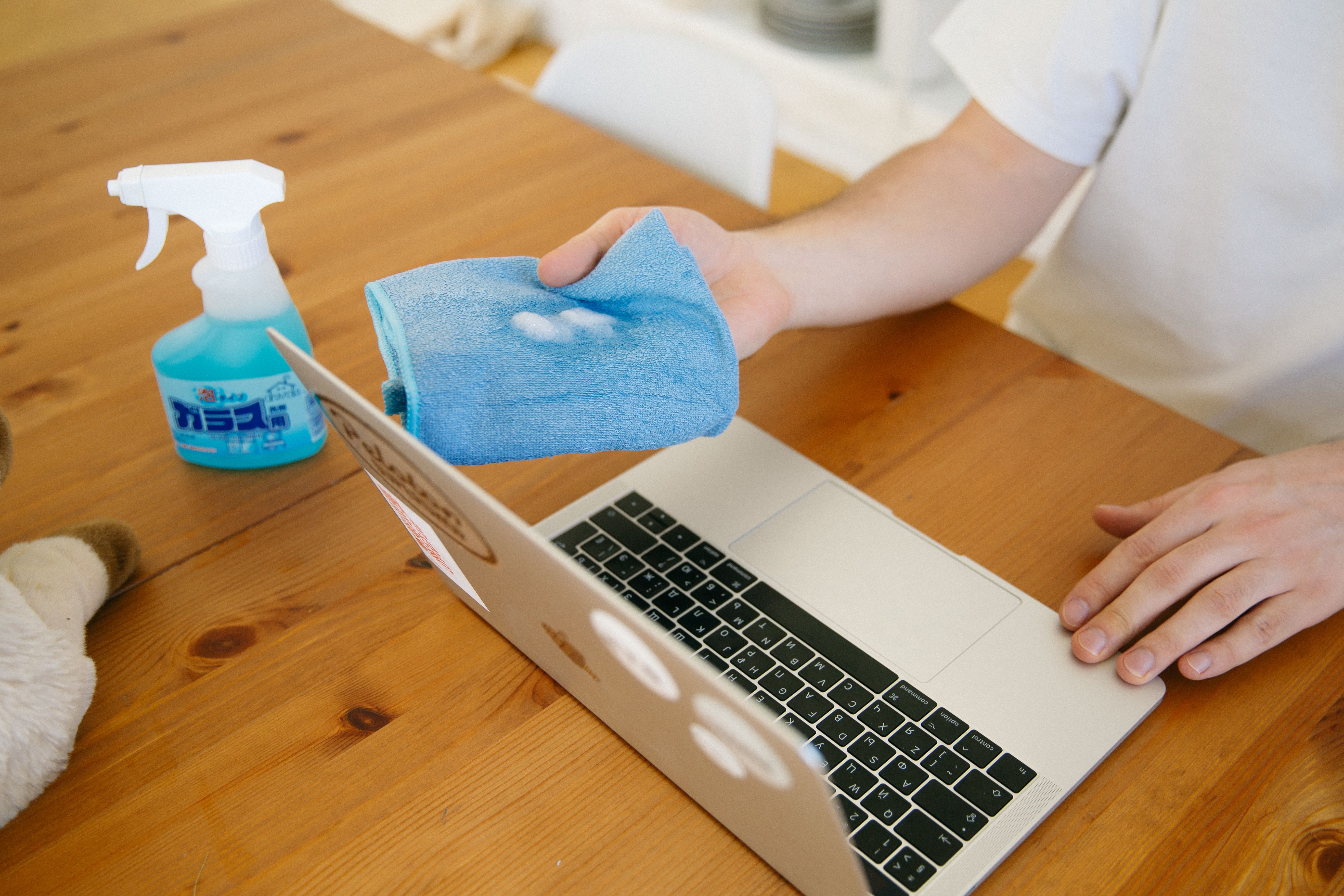
Does your laptop feel very hot? Does the fan make loud noise? Does it shut down by itself? This is called laptop overheating. It is a common problem, but you can fix it at home. In this easy guide, we will clean the fan and put new thermal paste on your laptop. Let’s start!

Photo credit: Polina Zimmerman on Pexels
📋 What You Will Learn
🌡️ Why Does a Laptop Get Too Hot?
Every laptop has a small fan and a heat sink inside. They work together to keep the CPU and GPU cool. Over time, three things go wrong:
- Dust builds up inside the fan and blocks airflow.
- The thermal paste between the CPU and heat sink dries out.
- The laptop’s air vents get covered (like when it sits on a bed).
⚠️ Signs Your Laptop Needs Cleaning
- The bottom of the laptop feels very hot
- The fan is very loud
- Games or apps become slow (this is called thermal throttling)
- The laptop shuts down without warning
👉 Get this type of photo free from Pexels – Laptop Repair (download, upload to WordPress Media, then paste the URL above)
🧰 Tools You Need
- Small screwdriver set
- Compressed air can (also called a duster)
- Soft brush
- Isopropyl alcohol and a soft cloth
- New thermal paste
- A plastic tool to open the case (called a spudger)
🧹 How to Clean the Fan (Step by Step)
Step 1: Turn Off and Unplug
Turn off your laptop. Remove the charger. If the battery can be removed, take it out too.
Step 2: Open the Back Cover
Remove all the small screws with your screwdriver. Use the plastic tool to open the cover slowly. Do not pull too hard.
Step 3: Find the Fan
The fan looks like a small round part with blades. It sits next to metal fins (the heat sink).
Step 4: Blow Away the Dust
Use the compressed air can in short bursts. Hold the fan blades still with your finger so they don’t spin too fast. Use the brush for hard-to-reach dust.
Step 5: Clean the Vents
Clean the small holes on the side of the laptop too. This helps air flow better.
👉 Get this type of photo free from Pexels – Computer Cleaning (download, upload to WordPress Media, then paste the URL above)
🧪 How to Apply Thermal Paste
Step 1: Remove the Old Paste
Take off the heat sink carefully. Loosen the screws a little at a time, in a criss-cross pattern. Clean the old paste from the CPU and heat sink using alcohol and a soft cloth.
Step 2: Let It Dry
Wait one or two minutes so the surface is fully dry.
Step 3: Add New Paste
Put a small dot of paste in the middle of the CPU. It should be about the size of a rice grain. Do not use too much.
Step 4: Put the Heat Sink Back
Place the heat sink straight down on top. Do not slide it. Tighten the screws in a criss-cross pattern too.
Step 5: Close the Laptop and Test
Put the fan and back cover on again. Turn on the laptop. You can check the temperature with a free program called HWMonitor.
👉 Get this type of photo free from Pexels – Motherboard Repair (download, upload to WordPress Media, then paste the URL above)
🏆 Best Thermal Paste Brands
| Brand | Good For | Price |
|---|---|---|
| Arctic MX-4 | Beginners | Low |
| Noctua NT-H1 | Everyday laptops | Medium |
| Thermal Grizzly Kryonaut | Gaming laptops | High |
✨ Extra Tips to Stay Cool
- Use your laptop on a hard, flat table — not on a bed or pillow
- Use a cooling pad for extra airflow
- Clean the fan every 6 months
- Change the thermal paste every 1-2 years
- Close apps you are not using
❓ FAQ
How often should I clean my laptop fan?
Every 6 months is a good rule. If you live in a dusty place, clean it every 3 months.
Is it safe to do this myself?
Yes, if you go slowly and follow the steps. But if your laptop has a warranty, check the rules first.
What is the best thermal paste?
Arctic MX-4 and Noctua NT-H1 are great choices for beginners.
Need More Laptop Tips?
Check out our other guides: Laptop Tips | Check Laptop Temperature | Best Cooling Pads
🔗 More Helpful Reading
Internal:
Clean Laptop Keyboard ·
Speed Up a Slow Laptop ·
Laptop Buying Guide ·
Best Laptops for Students ·
Extend Battery Life ·
Computer Repair Tips ·
All Tech Guides
External:
Computer Cooling ·
Motherboard ·
RAM ·
SSD ·
BIOS ·
Dust ·
HP Support ·
Dell Support ·
Intel Support
