Laptop Touchpad Not Working? Troubleshoot & Driver Fixes
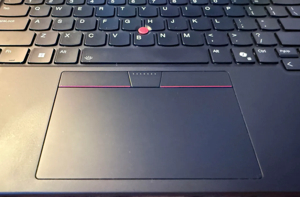
Image 1: Laptop touchpad not responding in Windows.
Quick Summary
If your laptop touchpad stops working, the cause is usually simple — a function key shortcut disabled it, a driver is outdated or missing, or a Windows update changed your settings. Most touchpad problems can be fixed in 5 to 10 minutes.
Start by pressing the touchpad function key, then check Windows touchpad settings, update or reinstall the driver in Device Manager, and run the hardware troubleshooter. If nothing works, the touchpad cable inside the laptop may be loose.
Why Laptop Touchpads Stop Working
There are several common reasons why a touchpad may suddenly stop responding. Most are software-related and easy to fix.
- Touchpad disabled by function key: Many laptops have a Fn key shortcut that toggles the touchpad on and off.
- Driver missing or corrupted: Windows updates can break or remove the touchpad driver.
- Touchpad disabled in settings: Windows settings may have the touchpad turned off.
- BIOS setting: Some laptops allow disabling the touchpad in BIOS.
- Physical damage or loose cable: The internal ribbon cable connecting the touchpad to the motherboard may be loose.
- Windows update conflict: A recent update may have caused driver compatibility issues.
Fix 1: Check the Function Key Shortcut
This is the most common and simplest fix. Most laptops have a dedicated function key combination that enables or disables the touchpad. You may have accidentally pressed it without realizing.
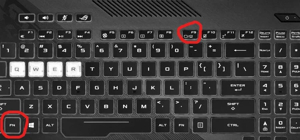
Image 2: Function key on laptop keyboard used to enable or disable the touchpad.
Look at your keyboard’s top row (F1 to F12). Find the key with a touchpad icon (a rectangle with a line through it). Press it once. If nothing happens, try Fn + that key.
- HP: Fn + F7 or double-tap the top-left corner of the touchpad
- Dell: Fn + F5 or Fn + F3
- Lenovo: Fn + F6 or Fn + F8
- Asus: Fn + F9 or Fn + F7
- Acer: Fn + F7
Some laptops show a small on-screen icon when the touchpad is toggled on or off.
Fix 2: Check Windows Touchpad Settings
Windows has a built-in touchpad settings page. Sometimes the touchpad is simply turned off in settings, especially after an update.
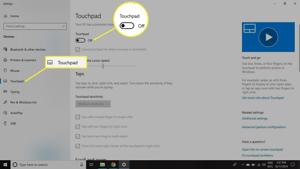
Image 3: Windows touchpad settings showing the enable/disable toggle.
- Open Settings (Windows + I).
- Go to Bluetooth & devices > Touchpad (Windows 11).
- Or go to Devices > Touchpad (Windows 10).
- Make sure the Touchpad toggle is turned On.
- Check the sensitivity setting — set it to Normal.
Also look for an option that says “Leave touchpad on when a mouse is connected.” If this is off, the touchpad will be disabled whenever you plug in an external mouse.
Fix 3: Update or Reinstall the Touchpad Driver
Outdated, corrupted, or missing drivers are one of the most common causes of touchpad failure. You can fix this through Device Manager.
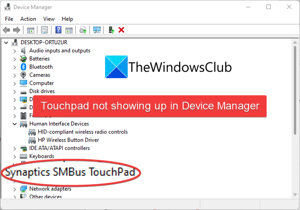
Image 4: Device Manager showing touchpad driver under Mice and other pointing devices.
Update the Driver
- Right-click the Start button and select Device Manager.
- Expand Mice and other pointing devices.
- Right-click your touchpad (may be named Synaptics, ELAN, or Precision Touchpad).
- Select Update driver.
- Choose Search automatically for drivers.
- Follow the on-screen instructions and restart if prompted.
Reinstall the Driver
If updating does not work, try uninstalling and reinstalling the driver:
- Open Device Manager.
- Expand Mice and other pointing devices.
- Right-click the touchpad and select Uninstall device.
- Check the box that says “Attempt to remove the driver for this device” if it appears.
- Click Uninstall.
- Restart your laptop.
Windows will automatically reinstall the correct driver on restart. If it does not, visit your laptop manufacturer’s website and download the latest touchpad driver manually.
Mice and other pointing devices
Right-click touchpad
Update driver or Uninstall device
Restart laptop
Fix 4: Check If Touchpad Is Missing from Device Manager
If the touchpad does not appear at all in Device Manager, Windows may not be detecting it. This can happen after a BIOS update or a driver conflict.
- Open Device Manager.
- Click View > Show hidden devices.
- Look under Mice and other pointing devices for any greyed-out entries.
- If found, right-click and select Enable device.
If still nothing appears, try these steps:
- Click Action > Scan for hardware changes in Device Manager.
- Restart the laptop and check again.
- Download the touchpad driver from your laptop manufacturer’s support page and install it manually.
Fix 5: Roll Back the Driver
If the touchpad stopped working after a Windows update, rolling back to the previous driver version may fix it.
- Open Device Manager.
- Expand Mice and other pointing devices.
- Right-click the touchpad and select Properties.
- Go to the Driver tab.
- Click Roll Back Driver if the option is available.
- Follow the prompts and restart your laptop.
If the button is greyed out, there is no previous driver version to roll back to.
Fix 6: Run the Hardware Troubleshooter
Windows has a built-in hardware troubleshooter that can detect and fix touchpad problems automatically.
System
Troubleshoot
Other troubleshooters
Run Hardware and Devices
- Open Settings.
- Go to System > Troubleshoot.
- Select Other troubleshooters.
- Find Hardware and Devices (or Keyboard).
- Click Run and follow the instructions.
If the troubleshooter finds an issue, it will attempt to fix it automatically.
Fix 7: Check BIOS/UEFI Settings
Some laptops have a setting in BIOS that can disable the touchpad. If none of the above fixes work, check if the touchpad is enabled in BIOS.
- Restart the laptop.
- Press the BIOS key during startup (usually F2, F10, Del, or Esc).
- Navigate to the Advanced or Internal Device section.
- Look for Internal Pointing Device or Touchpad.
- Make sure it is set to Enabled.
- Save changes and exit BIOS.
Check your laptop’s manual for the exact BIOS key and menu layout, as these vary by manufacturer.
Fix 8: Perform a Hard Reset
A hard reset clears residual electrical charge from the laptop and can sometimes restore touchpad functionality.
- Shut down the laptop completely.
- Unplug the charger and all USB devices.
- Remove the battery if it is removable.
- Press and hold the power button for 30 seconds.
- Reconnect the battery and charger.
- Power on the laptop and check the touchpad.
If your laptop has a non-removable battery, just hold the power button for 30 seconds while unplugged.
Fix 9: Check for Windows Updates
Sometimes Microsoft releases a patch that fixes touchpad compatibility issues caused by a previous update.
- Open Settings.
- Go to Windows Update.
- Click Check for updates.
- Install all available updates.
- Restart the laptop.
Fix 10: Check the Internal Touchpad Cable
If none of the software fixes work, the problem may be hardware-related. The ribbon cable connecting the touchpad to the motherboard can become loose, especially on older laptops or after a drop.
Warning: Opening your laptop may void the warranty. If your laptop is still under warranty, contact the manufacturer for repair instead.
- Shut down and unplug the laptop.
- Remove the bottom cover or keyboard deck (depending on laptop model).
- Locate the flat ribbon cable connecting the touchpad to the motherboard.
- Gently disconnect and reconnect the cable.
- Make sure it is firmly seated in the connector.
- Reassemble and test.
If the cable is damaged, you may need to replace it or the entire touchpad assembly.
When to Seek Professional Help
If you have tried all 10 fixes and the touchpad still does not work, the touchpad hardware itself may be damaged. In this case:
- Contact your laptop manufacturer’s support for warranty repair.
- Visit a certified repair shop for hardware diagnosis.
- As a temporary workaround, use an external USB mouse or Bluetooth mouse.
Quick Fix Checklist
- Press Fn + touchpad key
- Check Settings > Touchpad toggle
- Update driver in Device Manager
- Uninstall and reinstall driver
- Check for hidden devices in Device Manager
- Roll back driver if recently updated
- Run hardware troubleshooter
- Check BIOS touchpad setting
- Perform a hard reset
- Check internal cable connection
Useful Links
- Asdullah.com
- Windows Support
- Business Insider: Touchpad Not Working Fixes
- Lifewire: Enable/Disable Touchpad
- GeeksforGeeks: Fix Touchpad Not Working
- ZDNET: Touchpad Problems and Fixes
FAQ
Why did my touchpad suddenly stop working?
The most common cause is accidentally pressing the Fn key shortcut that disables the touchpad, or a Windows update that broke the driver.
How do I enable the touchpad with the keyboard?
Look for the touchpad icon on F1-F12 keys and press it. If nothing happens, press Fn + that key.
What if the touchpad is not showing in Device Manager?
Click View > Show hidden devices. If still missing, download and install the driver manually from your laptop manufacturer’s website.
Can a Windows update break the touchpad?
Yes. Windows updates can cause driver conflicts. Try rolling back the driver or installing the latest driver from the manufacturer.
Is a broken touchpad expensive to fix?
Most touchpad issues are software-related and free to fix. If the hardware is damaged, a replacement touchpad usually costs $20 to $50 plus labor.
Conclusion
A non-working laptop touchpad is usually caused by a simple software issue — a disabled setting, a missing driver, or a Windows update conflict. Start with the function key shortcut, then check Windows settings, update or reinstall the driver in Device Manager, and run the hardware troubleshooter.
If all software fixes fail, check the BIOS setting, perform a hard reset, or inspect the internal cable connection. As a temporary solution, an external USB or Bluetooth mouse will keep you working while you diagnose the problem.
